

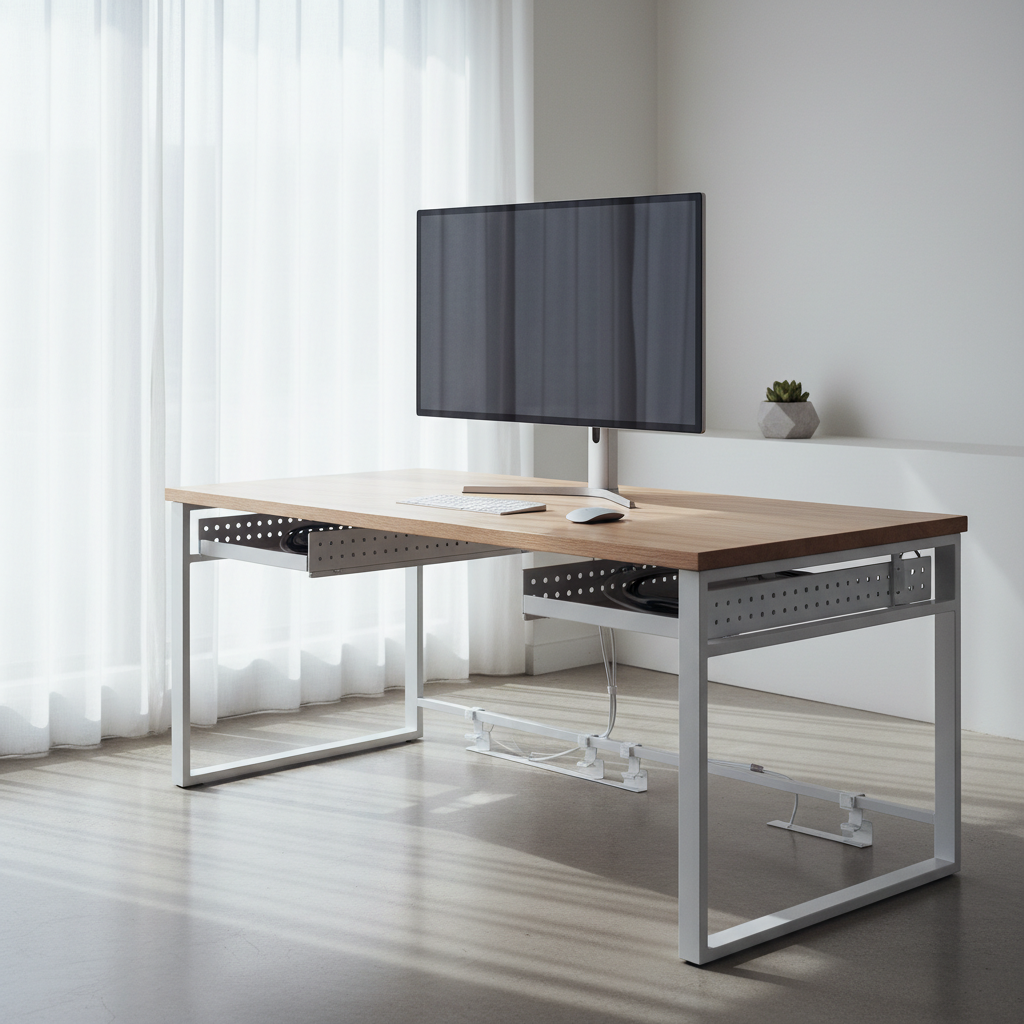
A messy desk with tangled cables looks bad and feels stressful. Learning how to hide monitor cables on desk is one of the easiest ways to make your workspace look clean and professional. This guide shows you exactly how to do it, step by step. Whether you have a simple desk, a standing desk, or an L-shaped desk, you will find the right method here.
Quick Answer: 3 Best Methods to Hide Monitor Cables on Desk
Before we go deep, here are the three fastest ways to hide monitor cables on desk. Pick the one that fits your setup.
Method 1: Route Through Monitor Arm Channels
If you use a monitor arm, most arms have built-in channels. You can pass cables through these channels. This hides cables completely from view. It is the cleanest method if you already have a monitor arm.
Method 2: Use Under-Desk Cable Trays
Cable trays sit under your desk. You drop all cables into the tray. The tray holds them out of sight. This method works for any desk type and costs very little.
Method 3: Bundle with Cable Sleeves and Clips
Cable sleeves wrap around groups of cables. Clips hold cables along the desk edge or leg. This method is flexible and works well for small setups. It is the cheapest way to hide monitor cables on desk.
Tools and Materials You’ll Need to Hide Monitor Cables on Desk
Before you start, gather your tools. Having everything ready makes the job faster.
Essential Cable Management Tools
- Cable ties (zip ties) — 20 to 30 pieces
- Adhesive cable clips — 10 to 15 pieces
- Under-desk cable tray — one tray per desk
- Cable sleeve or wrap — 1 to 2 meters
- Scissors or cable cutter
- Measuring tape
Optional Upgrades for Cleaner Results
- Monitor arm with cable channels
- Cable raceway covers (for wall-mounted setups)
- Velcro cable straps (reusable)
- Cable management box (to hide power strips)
Budget-Friendly vs. Premium Options
| Item | Budget Option | Premium Option |
|---|---|---|
| Cable Tray | Wire mesh tray ($10–$15) | Steel tray with cover ($30–$50) |
| Cable Sleeves | Neoprene wrap ($5–$8) | Zipper sleeve with clips ($15–$25) |
| Cable Clips | Basic adhesive clips ($3–$5) | Silicone cable holders ($10–$15) |
| Cable Ties | Plastic zip ties ($2–$4) | Reusable Velcro straps ($8–$12) |
Step-by-Step: How to Hide Monitor Cables on a Standard Desk
This is the main tutorial. Follow these five steps to hide monitor cables on desk the right way.
Step 1: Plan Your Cable Routing Path
Before touching any cable, look at your desk. Decide where each cable should go. The goal is to run cables from the monitor down to the desk leg, then under the desk to the power outlet. Sketch a simple path on paper if it helps. This step saves time later.
Step 2: Disconnect and Organize All Cables
Turn off your monitor and PC. Unplug all cables: power, HDMI, DisplayPort, and USB. Lay them flat on the desk. Untangle any knots. Check each cable for damage. Replace any frayed or broken cables before you continue.
Step 3: Route Cables Behind the Monitor Stand
Take the monitor cables and run them straight down behind the monitor stand. Use two adhesive cable clips to hold the cables against the back of the stand. Space the clips about 15 cm apart. This keeps cables hidden behind the monitor itself.
Step 4: Secure Cables Under the Desk
Now guide the cables down the desk leg. Use cable clips every 20 cm along the leg. Once cables reach the bottom, route them into the under-desk cable tray. If you do not have a tray, use adhesive clips to run cables along the underside of the desk surface. Keep power cables separate from data cables to avoid interference.
Step 5: Bundle and Conceal Remaining Slack
If you have extra cable length, do not leave it loose. Coil the slack into a small circle. Secure it with a cable tie or Velcro strap. Tuck the bundle into the cable tray or behind the desk leg. Wrap a cable sleeve around any visible group of cables for a clean look.
How to Hide Monitor Cables on a Standing Desk
Standing desks move up and down. This creates a special challenge when you hide monitor cables on desk. Cables need enough slack to stretch when the desk rises.
Managing Cable Slack for Height Adjustment
Measure the full height of your desk at its highest point. Add 30 cm of extra cable length. This ensures cables never pull tight when the desk goes up. Use a cable spine or accordion-style loom to hold the slack. The spine stretches and compresses with the desk.
Using Flexible Cable Spines and Loops
A cable spine is a flexible plastic channel. Mount one end under the desk and the other on the desk leg. Feed all cables through the spine. As the desk moves, the spine bends but keeps cables organized. Cable loops work too. Make a loose loop under the desk and secure it with a clip. The loop opens when the desk rises.
Best Cable Lengths for Standing Desks
For a standing desk, use cables that are 1.5 to 2 meters long for the monitor. Use a 2 to 3 meter power cable. Longer cables give you room to manage slack. Short cables may pull and disconnect when the desk moves.
How to Hide Monitor Cables on an L-Shaped or Corner Desk
L-shaped desks have two surfaces that meet at a corner. Cables must travel around this corner, which can look messy if not planned well.
Routing Cables Around Desk Corners
Run cables along the underside of one desk surface toward the corner. At the corner, use a 90-degree cable clip to change direction. Continue along the second surface. Keep cables tight against the desk edge so they stay hidden from above.
Using Grommet Holes for Clean Transitions
Many L-shaped desks have grommet holes — round holes in the desk surface. Pass cables through a grommet hole to move them from one side of the desk to the other. If your desk lacks a grommet hole, you can drill one. Use a 60 mm hole saw. Place a rubber grommet in the hole to protect cables from sharp edges.
Dual-Side Cable Management Strategies
If your monitors sit on different sides of the L-desk, manage cables on each side separately. Use one cable tray per side. Run a single power cable from each tray to a central power strip. This keeps each side clean and makes it easy to hide monitor cables on desk without crossing cables.
How to Hide Monitor Cables with a Monitor Arm
Monitor arms are great for hiding cables. Most arms have built-in paths for cables. Here is how to use them.
Routing Cables Through the Arm Before Mounting
Before you attach the monitor to the arm, feed the cables through the arm’s cable channel. Start from the base of the arm and push cables up to the monitor mount. Leave enough slack at the monitor end to connect the ports. This is the easiest time to route cables — do it before the monitor is in place.
Using Built-In Cable Channels vs. External Sleeves
Built-in channels are part of the arm. They snap closed over the cables. If your arm has them, use them. If not, wrap a cable sleeve around the arm itself. The sleeve covers the cables that run along the arm. Both methods work well to hide monitor cables on desk when using an arm.
Hiding the Arm-to-Desk Cable Drop
Where the arm connects to the desk, cables drop down to the outlet. Use a cable sleeve or a short piece of raceway to cover this drop. Attach it to the desk leg with adhesive clips. This final touch makes the whole setup look seamless.
How to Hide Monitor Cables on a Desk Against the Wall
When your desk faces a wall, cables can run down the wall to the outlet. This needs a different approach.
Using Cable Raceways Along the Wall
Cable raceways are plastic channels that stick to the wall. Mount a raceway from the desk edge down to the power outlet. Open the raceway, place cables inside, and snap it shut. Paint the raceway to match your wall color for an invisible look.
Concealing Cables Behind Furniture
If you have a bookshelf or cabinet near the desk, run cables behind it. Use adhesive clips to hold cables along the back of the furniture. The furniture blocks the view of the cables. This is a simple trick to hide monitor cables on desk without buying extra products.
Power Strip Placement for Wall Desks
Mount a power strip on the wall just below the desk edge. Use double-sided mounting tape or screws. Plug the monitor and PC into this strip. Then run one power cable down the wall raceway to the outlet. This reduces the number of cables you need to hide.
Renter-Friendly Ways to Hide Monitor Cables (No Drilling)
If you rent your home, you may not be allowed to drill holes. Good news — you can still hide monitor cables on desk without any drilling.
Adhesive Cable Clips and Mounts
Adhesive clips use strong tape to stick to any surface. Place them along desk edges, legs, and walls. They hold cables firmly and peel off without damage when you move out. Use clips rated for at least 1 kg to ensure they stay in place.
Freestanding Cable Management Boxes
A cable management box sits on the floor or desk. You place the power strip and excess cables inside the box. The box hides everything. No screws or adhesive needed. Just set it down and close the lid.
Removable Cable Sleeves and Ties
Neoprene cable sleeves wrap around cables with a zipper or velcro. They do not stick to any surface. Velcro cable ties bundle cables together. Both are fully removable and leave no marks. These are ideal for renters who want to hide monitor cables on desk without commitment.
How to Hide Cables for Dual or Triple Monitor Setups
Multiple monitors mean more cables. Here is how to keep them organized.
Grouping Multiple Monitor Cables Together
Run all monitor cables together as one bundle. Use a large cable sleeve to wrap them. One bundle looks cleaner than three separate cables. Secure the bundle with Velcro straps every 30 cm.
Using Multi-Channel Cable Trays
Some cable trays have dividers inside. These dividers create separate channels. Put power cables in one channel and data cables in another. This prevents interference and keeps things organized. A multi-channel tray is the best way to hide monitor cables on desk with multiple screens.
Managing Different Cable Types (HDMI, DisplayPort, USB-C)
Different cables have different thicknesses. Label each cable at both ends with a small tag. This helps you know which cable goes where. Use thinner cables where possible — USB-C cables are thinner than HDMI and take up less space in a sleeve.
Best Products to Hide Monitor Cables on Desk in 2026
Here are top product picks to help you hide monitor cables on desk.
Top-Rated Under-Desk Cable Trays
- JOTO Cable Management Tray — Holds up to 8 cables, easy to install
- Yecaye Under Desk Cable Manager — Mesh design, fits most desks
- Tokyee Cable Management Kit — Includes tray, clips, and ties
Best Cable Sleeves and Wraps
- JOTO Cable Management Sleeve — Neoprene, zipper closure, 1.5m length
- Yecaye Cable Wrap — Braided design, cut to length
- BlueRigger Cable Sleeve — Wide opening, fits thick cables
Recommended Cable Clips and Ties
- BlueLounge CableDrop — Silicone, holds 3–5 cables per clip
- Velcro ONE-WRAP Ties — Reusable, cut to any length
- BSN Cable Clips — Self-adhesive, pack of 20
Premium Cable Management Kits
- Amazon Basics Cable Management Kit — Full kit with tray, clips, sleeve, and ties
- LG ScreenClean Desk Kit — Designed for monitor setups
Common Mistakes When Hiding Monitor Cables (And How to Fix Them)
Even with a good plan, mistakes happen. Here are the most common ones and how to fix them.
Using Cables That Are Too Long
Extra-long cables create slack that is hard to manage. Fix: Buy cables that match your actual distance. Measure first. If you already have long cables, coil the excess tightly and secure it with a Velcro strap. Tuck the coil inside the cable tray.
Over-Tightening Cable Bundles
Pulling zip ties too tight can damage cables or bend connectors. Fix: Leave a small gap between the tie and the cables. Use Velcro straps instead of zip ties — they are gentler and adjustable.
Forgetting Cable Accessibility
If you hide cables too well, you cannot unplug them when needed. Fix: Leave a small loop of cable near each connection point. Use quick-disconnect adapters if you need to move your setup often.
Ignoring Signal Interference Issues
Running power cables next to data cables can cause screen flickering. Fix: Keep power and data cables at least 5 cm apart. Use a multi-channel tray or separate sleeves for each type.
FAQ: How to Hide Monitor Cables on Desk
What is the cheapest way to hide monitor cables?
The cheapest way to hide monitor cables on desk is using adhesive cable clips and zip ties. A pack of clips costs about $3 and zip ties cost $2. Together, they cost under $5 and can make your desk look much cleaner.
How do I hide monitor cables without a monitor arm?
Use adhesive cable clips along the back of the monitor stand. Run cables down the desk leg and secure them with more clips. Drop cables into an under-desk tray. This method works without any arm and still looks clean.
Can I hide monitor cables on a glass desk?
Yes. Glass desks need special clips with soft padding to avoid scratching. Use adhesive clips designed for glass surfaces. Route cables through a cable tray mounted under the glass with special clamps. You can also use a freestanding cable management box next to the desk.
How do I prevent cable sag on standing desks?
Use a cable spine or a cable loop with a bungee cord. The spine holds cables in a flexible channel. The bungee loop stretches when the desk rises and contracts when it lowers. Both methods prevent sag and keep cables organized.
What cable length should I use for a clean desk setup?
Measure the distance from your monitor port to the power outlet. Add 30 cm for routing and slack. For most desks, a 1.5 meter monitor cable and a 2 meter power cable work well. For standing desks, add another 50 cm to both.
Conclusion: Achieving a Clean, Cable-Free Desk Setup
Learning how to hide monitor cables on desk is simple when you follow the right steps. Start by planning your cable path. Use cable trays, sleeves, and clips to keep everything organized. Choose the method that fits your desk type — standard, standing, L-shaped, or wall desk. Avoid common mistakes like using cables that are too long or over-tightening bundles. With the right tools and a little patience, you can turn a messy desk into a clean, professional workspace today. Pick one method from this guide and start your cable management project now.