

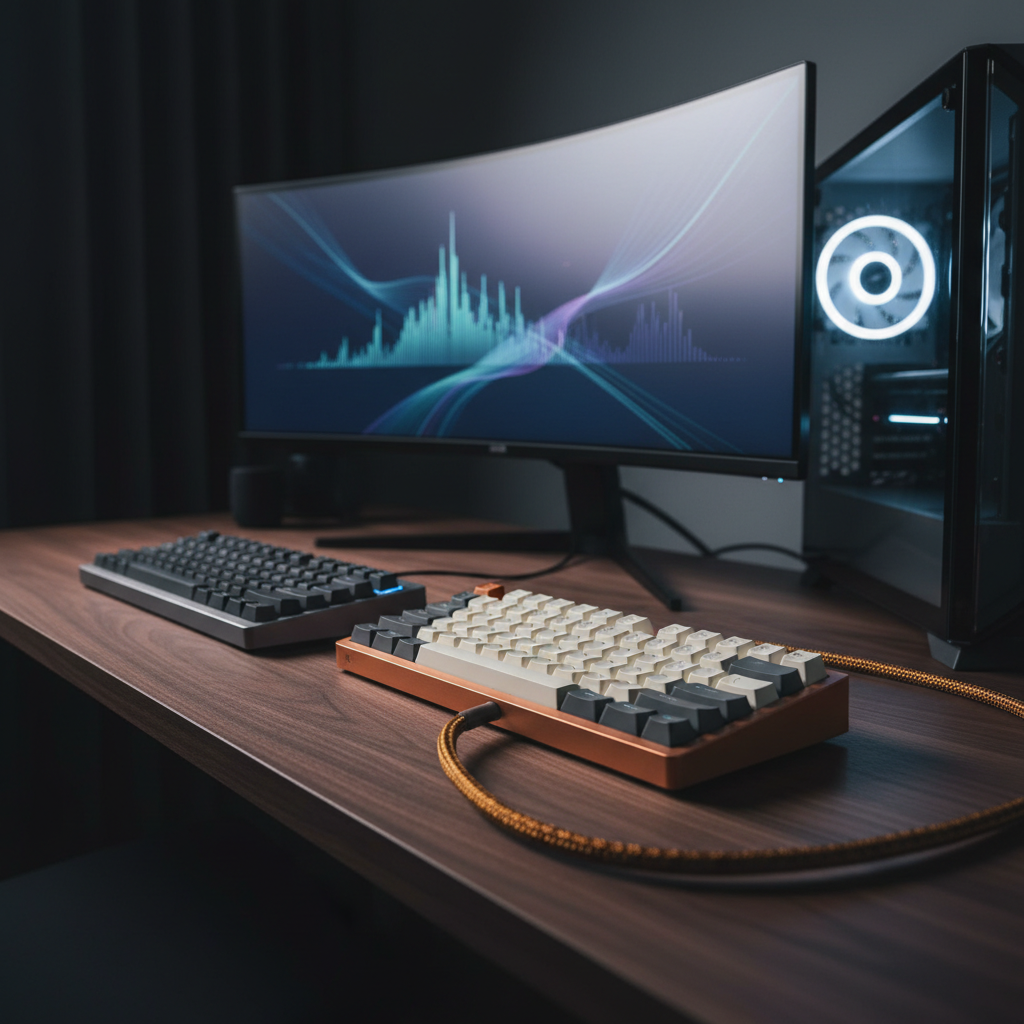
The keyboard you pick shapes your entire desk setup. It affects how your space looks, how you work, and even how you feel after a long day. In 2026, the gap between wireless and wired keyboards has narrowed more than ever. Top-tier 2.4GHz wireless boards now match wired latency within a fraction of a millisecond. Battery life stretches into months. Yet cables still win on pure simplicity and zero maintenance.
This guide breaks down wireless keyboard vs wired keyboard for desk setup use across every angle that matters: latency, aesthetics, battery life, price, multi-device workflows, and real-world desk scenarios. By the end, you will know exactly which path fits your setup.
Quick Verdict: Wireless vs Wired Keyboard for Your Desk Setup
Short on time? Here is the bottom line based on thousands of desk setup builds and user reports in 2026.
Best for Clean Minimalist Setups: Wireless
If your goal is a clean, cable-free desk, a wireless keyboard is the clear winner. No cable means no routing, no clips, and no visual clutter. Pair it with a wireless mouse and your desk surface stays pure. Popular picks like the Logitech MX Keys S ($120) or NuPhy Air75 V2 ($149) deliver both style and substance.
Best for Zero-Maintenance Users: Wired
If you want to plug in once and never think about power again, a wired keyboard wins. No charging. No battery swaps. No “is it connected?” moments. A wired USB-C board like the Keychron C1 Pro ($55) gives you full performance with zero ongoing upkeep.
Best of Both Worlds: Tri-Mode Keyboards
Tri-mode keyboards offer wired USB-C, 2.4GHz wireless, and Bluetooth in one package. Models like the Keychron Q1 HE ($219) let you switch modes based on your need. Use 2.4GHz for gaming, Bluetooth for your tablet, and wired USB-C when you need guaranteed power and lowest latency. For most desk setup enthusiasts in 2026, a tri-mode keyboard is the smartest single purchase.
Ready to explore? Check current prices on top tri-mode keyboards → See Our Top Picks
Wireless Keyboard vs Wired Keyboard: At-a-Glance Comparison
Before we go deep, here is a quick snapshot of how wireless and wired keyboards compare on the specs that matter most for a desk setup.
Key Specs Comparison Table
| Feature | Wired (USB-C) | 2.4GHz Wireless | Bluetooth Wireless |
|---|---|---|---|
| Typical Latency | 0.5–1 ms | 1–3 ms | 10–30 ms |
| Polling Rate | 1000 Hz (up to 8000 Hz) | 1000 Hz (up to 4000 Hz) | 125–130 Hz |
| Power Source | USB bus (no battery) | Internal battery | Internal battery |
| Battery Life | N/A | 100–300 hours | 300–400+ hours |
| Cable Required | Yes | No | No |
| Multi-Device Support | Single device | Usually single device | Up to 3–4 devices |
| Typical Price Range | $30–$200 | $60–$250 | $50–$250 |
| Best For | Gaming, budget builds | Low-latency wireless | Multi-device productivity |
Latency and Performance in 2026
The latency story has changed dramatically. In 2022, wireless keyboards carried a clear performance penalty. In 2026, flagship 2.4GHz wireless boards from Logitech, Razer, and Asus report latency as low as 0.5–1 ms. That matches many wired boards running at standard 1000 Hz polling. Bluetooth remains slower at 10–30 ms, but for typing, email, and coding, that gap is invisible.
Battery Life vs Bus-Powered Reliability
A wired keyboard draws power directly from your computer. It never dies. A wireless keyboard depends on its internal battery. Modern wireless keyboards deliver 200–400 hours of use on a single charge when RGB is off. With RGB on, expect 8–30 hours depending on the model. For most desk users, charging every 2–4 weeks becomes a non-issue.
Price and Long-Term Cost Analysis
Wired keyboards are cheaper upfront. A solid wired mechanical board starts around $50. Wireless keyboards add $20–$80 for the wireless module and battery. Over three to five years, a wireless keyboard may need a battery replacement (if not rechargeable), which adds $10–$20. For most users, the total cost of ownership difference is small. The real cost is convenience vs. simplicity.
Desk Setup Aesthetics: Wireless Keyboard vs Wired Keyboard
Your desk setup is a visual space. How your keyboard looks and connects matters as much as how it types.
Cable Management and Visual Cleanliness
A wireless keyboard removes one cable from your desk entirely. That means no routing along the edge, no cable clips, and no dongle dangling behind your monitor. For minimalist desk setups, this is a major win. If you use a wired keyboard, plan for a clean cable route. A short USB-C cable with a coiled design can look intentional rather than messy.
Positioning Flexibility and Ergonomics
Wireless keyboards let you place the board anywhere within range. Move it to your lap. Slide it to the side for mouse space. Tilt it without worrying about cable strain. Wired keyboards lock you to the cable length. Most USB-C cables run 1.5–2 meters, which gives decent range, but you still feel the tether when you reposition.
Minimalist Desk Setup Compatibility
Minimalist desk setups thrive on wireless gear. A wireless keyboard, wireless mouse, and a single monitor create an almost floating look. Brands like NuPhy, Keychron, and Logitech design their wireless boards with this aesthetic in mind. Low-profile keys, slim frames, and muted color options all support a clean visual language.
Standing Desk and Adjustable Setup Considerations
If you use a standing desk or a motorized adjustable desk, a wireless keyboard removes cable strain when the desk height changes. With a wired keyboard, you need enough slack in the cable to handle full height range. A short cable can pull taut at standing height and damage the USB port over time. Wireless solves this problem completely.
Performance Deep Dive: Wireless vs Wired Keyboard Latency
Latency is the time between a key press and the signal reaching your computer. For most desk work, any latency under 10 ms feels instant. Here is what the numbers look like in 2026.
Wired USB-C Latency: The Baseline (0.5–1ms)
A wired USB-C keyboard at 1000 Hz polling delivers 0.5–1 ms latency. Premium boards with 8000 Hz polling drop this to 0.125–0.5 ms. This is the gold standard. For competitive gaming, fast-paced typing, or any task where every millisecond counts, wired still holds the theoretical edge.
2.4GHz Wireless: Virtually Indistinguishable from Wired (1–3ms)
Modern 2.4GHz wireless keyboards use dedicated dongles that communicate directly with the board. Logitech Lightspeed averages around 0.8 ms. Other flagship 2.4GHz implementations sit at 1–3 ms. For 99% of users, this feels identical to wired. Even in fast gaming, the 1–2 ms difference is below human perception threshold.
Bluetooth Latency: Fine for Typing, Not Gaming (10–30ms)
Bluetooth 5.3 runs at roughly 125–130 Hz polling, which translates to 8–15 ms latency in best-case scenarios. Real-world Bluetooth latency often sits at 10–30 ms depending on your OS, interference, and device. For typing, coding, and general productivity, this is perfectly fine. For competitive gaming or rhythm games, you will notice the delay.
What the Numbers Mean for Your Desk Setup
If you game competitively, choose wired or 2.4GHz wireless. If you code, write, or manage emails, Bluetooth is more than fast enough. The key insight for desk setup users: wireless keyboard latency is no longer a valid reason to avoid wireless in 2026. The real trade-offs are about power management and cable simplicity.
Connectivity Options: Wired vs Wireless Keyboard Connections
Modern keyboards offer multiple connection types. Understanding each one helps you pick the right tool for your desk setup.
USB-C Wired: Plug-and-Play Simplicity
USB-C wired connection is the simplest option. Plug in the cable. The keyboard works. No pairing. No drivers. No battery. It delivers the lowest latency and most consistent performance. The trade-off is the physical cable on your desk.
2.4GHz Dongle: Low Latency Wireless
A 2.4GHz USB dongle creates a direct wireless link between your keyboard and computer. Latency matches wired in most cases. The dongle takes up one USB port. If your computer lacks USB-A ports, you may need an adapter. This is the best wireless option for gaming and performance-focused desk setups.
Bluetooth: Multi-Device Convenience
Bluetooth lets you pair your wireless keyboard with multiple devices. Switch between your desktop, laptop, tablet, and phone with a key press. No dongle needed. This is ideal for multi-device workflows. The trade-off is higher latency and occasional pairing hiccups.
Tri-Mode Keyboards: The Modern Solution
Tri-mode keyboards combine USB-C wired, 2.4GHz wireless, and Bluetooth in one board. You get the flexibility to use the right connection for each situation. Switch to 2.4GHz for gaming. Use Bluetooth for your iPad. Plug in USB-C when the battery runs low. For most desk setup builds in 2026, a tri-mode keyboard offers the best balance of performance and flexibility.
Explore tri-mode options → View Top Tri-Mode Keyboards
Pros and Cons: Wireless Keyboard for Desk Setup
Advantages of Wireless Keyboards
- Clean, cable-free desk surface
- Flexible positioning and ergonomic freedom
- Multi-device switching with Bluetooth
- Works well with standing desks and adjustable setups
- Modern tri-mode options match wired latency
- Battery life now stretches into months for most users
- Ideal for minimalist and aesthetic-focused desk builds
Disadvantages of Wireless Keyboards
- Requires periodic charging or battery replacement
- RGB lighting drains battery quickly
- Bluetooth latency is too high for competitive gaming
- 2.4GHz dongle uses a USB port
- Higher upfront cost than basic wired boards
- Occasional pairing or interference issues in crowded wireless environments
- Slightly heavier due to internal battery
Pros and Cons: Wired Keyboard for Desk Setup
Advantages of Wired Keyboards
- Lowest possible latency (0.5–1 ms)
- Zero battery concerns or charging routine
- Consistent, reliable connection at all times
- Lower price point for equivalent build quality
- No dongle or pairing setup required
- Best choice for competitive gaming
- Lighter weight without internal battery
Disadvantages of Wired Keyboards
- Cable adds visual clutter to desk setup
- Limited positioning range based on cable length
- No multi-device switching
- Cable can strain or disconnect when desk height changes
- Requires cable management for clean aesthetics
- Less flexible for lap use or repositioning
- USB-C port occupied permanently
Best Keyboard Choice by Desk Setup Type
Your ideal keyboard depends on how you use your desk. Here are clear recommendations for the most common desk setup types.
Minimalist/Clean Desk Setup: Go Wireless
A minimalist desk setup prioritizes visual calm. A wireless keyboard removes the most visible cable on your surface. Pair it with a wireless mouse and a single cable to your monitor. Top picks: Logitech MX Keys S, NuPhy Air75 V2, or HHKB Pro Hybrid.
Multi-Monitor Productivity Station: Tri-Mode Wireless
If you run two or three monitors and switch between work and personal devices, a tri-mode wireless keyboard gives you the flexibility to connect to each device seamlessly. The Keychron Q1 HE or Keychron Q1 Max handles this workflow with ease.
Competitive Gaming Setup: Wired or 2.4GHz Wireless
For competitive FPS, fighting games, or rhythm games, every millisecond counts. A wired keyboard at 1000 Hz or higher polling delivers the lowest latency. If you prefer wireless, choose a flagship 2.4GHz board like the Razer Huntsman V3 Pro or Logitech G Pro X TKL Lightspeed.
Multi-Device Workflow: Bluetooth Wireless
If you switch between a Mac, Windows PC, iPad, and phone throughout the day, Bluetooth wireless is the most practical choice. Boards like the Logitech MX Keys S let you pair up to three devices and switch with a single key press.
Budget-Conscious Setup: Wired
If your budget is under $70, a wired keyboard gives you the best build quality and switch options for the price. The Keychron C1 Pro ($55) delivers hot-swappable switches, PBT keycaps, and solid build quality that wireless boards in the same price range cannot match.
Multi-Device Workflow: Why Wireless Keyboards Win
Modern work often spans multiple devices. You may code on a desktop, write on a laptop, and review on a tablet. A wireless keyboard with Bluetooth makes this workflow smooth.
Seamless Switching Between Desktop, Laptop, and Tablet
Most Bluetooth wireless keyboards support 3–4 device pairings. Press a function key to switch between your desktop, laptop, and tablet instantly. The keyboard reconnects in under a second. No unplugging cables. No re-pairing. This is a productivity boost that wired keyboards simply cannot match.
Hotkey Pairing and Device Management
Brands like Logitech and Keychron offer dedicated hotkeys for device switching. Logitech Flow even lets you copy and paste between devices. Keychron boards use Fn + 1/2/3 for quick Bluetooth channel switching. These small features add up over a workday.
Productivity Impact of Cable-Free Setups
Studies on workspace ergonomics show that reducing physical constraints improves focus and comfort. A wireless keyboard lets you adjust position throughout the day. Switch to a lap position for reading. Slide the keyboard aside for note-taking. These micro-adjustments reduce strain and keep you comfortable during long sessions.
Battery Life and Power Management: Wireless Keyboard Reality
Battery life is the most common concern with wireless keyboards. Here is what the data shows in 2026.
Modern Battery Life Expectations (Weeks to Months)
Most wireless keyboards in 2026 deliver 200–400 hours of use on a single charge in Bluetooth mode with RGB off. That translates to 2–6 months of typical office use. In 2.4GHz mode, expect 100–300 hours. High-capacity boards with 4000 mAh batteries can stretch even further.
RGB Lighting Impact on Battery
RGB lighting is the biggest battery drain. With full RGB on, most wireless keyboards last only 8–30 hours. If you use RGB effects, plan to charge weekly. If you turn RGB off or use a single static color, battery life extends dramatically. Many users set RGB to turn off after a few minutes of inactivity to save power.
Charging Habits and Battery Anxiety
Most wireless keyboards charge via USB-C. A full charge takes 2–4 hours. Many users charge overnight once a month. “Battery anxiety” is real for some users, but modern low-battery warnings give you days of notice before the keyboard dies. Most boards also work wired while charging, so you never lose functionality.
Wired Keyboards: Zero Power Concerns
A wired keyboard draws power from your computer. It never needs charging. It never dies. For users who hate thinking about battery levels, a wired keyboard offers total peace of mind.
FAQ: Common Questions About Wireless vs Wired Keyboards
Is wireless keyboard latency still an issue in 2026?
For 2.4GHz wireless, no. Flagship 2.4GHz boards now match wired latency within 0.5–1 ms. For Bluetooth, latency sits at 10–30 ms, which is fine for typing and productivity but noticeable in fast gaming. The wireless keyboard latency gap has closed for almost all desk setup use cases.
Can I use a wireless keyboard for competitive gaming?
Yes, if you use 2.4GHz wireless. Top-tier 2.4GHz boards from Logitech, Razer, and Asus deliver sub-1 ms latency that matches wired performance. Bluetooth wireless keyboards are not recommended for competitive gaming due to 10–30 ms latency.
How often do I need to charge a wireless keyboard?
With RGB off and Bluetooth mode, most wireless keyboards need charging every 2–6 months. With RGB on, expect weekly charging. Heavy 2.4GHz users may charge every 3–6 weeks. Most users find the charging routine manageable once they set a habit.
Are tri-mode keyboards worth the extra cost?
For most desk setup users, yes. A tri-mode keyboard gives you wired reliability, 2.4GHz performance, and Bluetooth flexibility in one board. The price premium over a single-mode wireless board is typically $20–$50. That small investment buys significant long-term flexibility.
Which is better for programming: wired or wireless?
Both work well. Programmers type for hours, so comfort and key feel matter most. Wireless keyboards offer positioning freedom that helps during long sessions. Wired keyboards remove any battery concern. Many programmers prefer tri-mode keyboards to get the best of both worlds.
What’s the best wireless keyboard for a clean desk setup?
For a clean, minimalist desk setup, the Logitech MX Keys S ($120) is the top pick. It is slim, quiet, and supports multi-device Bluetooth. For a more enthusiast feel, the NuPhy Air75 V2 ($149) offers low-profile mechanical switches with tri-mode connectivity. Both deliver the cable-free look that minimalist desk setups demand.
Final Recommendation: Choosing Between Wireless and Wired Keyboards
The choice between a wireless keyboard and a wired keyboard in 2026 comes down to your priorities. Both options deliver excellent performance. The differences are about workflow, aesthetics, and maintenance.
Decision Framework Based on Your Priorities
- Choose wireless if: You value a clean desk, multi-device switching, positioning flexibility, or a minimalist aesthetic.
- Choose wired if: You want zero maintenance, the absolute lowest latency, the best budget value, or competitive gaming performance.
- Choose tri-mode if: You want flexibility to switch between wired reliability and wireless convenience based on your task.
Our Top Picks for Every Desk Setup Type
| Desk Setup Type | Top Pick | Price | Why |
|---|---|---|---|
| Minimalist / Clean Desk | Logitech MX Keys S | $120 | Slim, quiet, multi-device Bluetooth |
| Enthusiast Minimalist | NuPhy Air75 V2 | $149 | Low-profile mechanical, tri-mode |
| Multi-Monitor Productivity | Keychron Q1 HE | $219 | Tri-mode, hot-swap, premium build |
| Competitive Gaming | Wired: Keychron C1 Pro | $55 | Low latency, great value, wired reliability |
| Budget Setup | Keychron C1 Pro | $55 | Best wired value under $60 |
| Compact / Travel Desk | HHKB Pro Hybrid | $250 | 60% layout, Topre switches, Bluetooth |
Take the next step: Match your desk setup goals to the right keyboard. Whether you choose a wireless keyboard for its clean aesthetics, a wired keyboard for its simplicity, or a tri-mode board for maximum flexibility, the best choice is the one that fits how you actually work.