

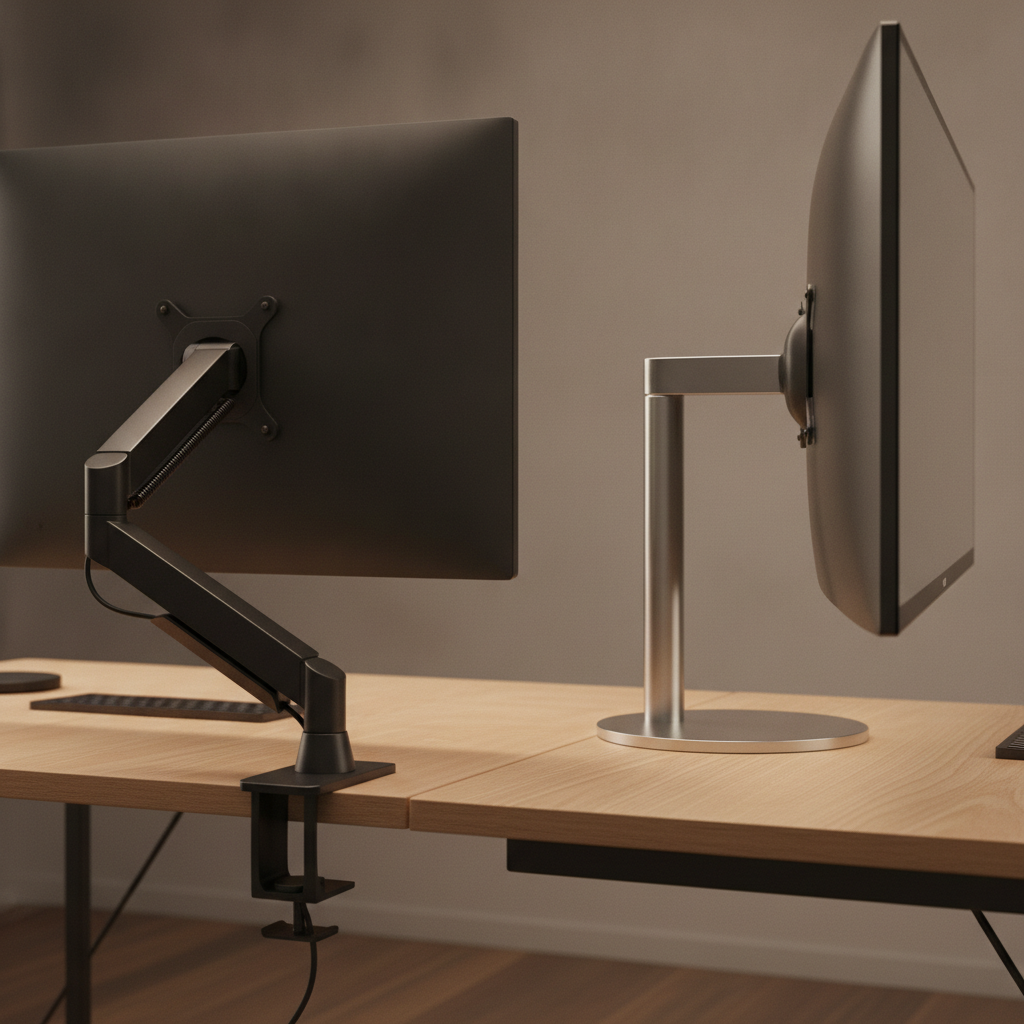
Choosing between a monitor arm and a monitor stand shapes how you work, play, and feel at your desk. Both options lift your screen to a better height. But they do it in very different ways. This 2026 guide breaks down every detail so you can pick the right fit for your desk setup.
Quick Answer: Monitor Arm vs Monitor Stand — Which Should You Buy?
Pick a monitor arm if you want full adjustability, free up desk space, and use a standing desk. Pick a monitor stand if you want a simple, low-cost lift with no setup hassle.
- Best for most home offices: A single monitor arm with gas spring ($60–$150).
- Best for tight budgets: A fixed monitor stand riser ($20–$50).
- Best for dual or triple screens: A dual or triple monitor arm mount ($120–$350).
- Best for small desks: A clamp-style monitor arm that clears the work surface.
If you want a fast pick, a mid-range gas spring monitor arm offers the best value for most users in 2026. Keep reading for the full breakdown.
What Is a Monitor Arm? How It Works for Desk Setups
A monitor arm is a mechanical mount that holds your display in the air. It attaches to your desk edge or through a hole in the desktop. The arm extends outward and lets you move the screen up, down, left, right, and tilt it in any direction. Most arms use a VESA plate (75×75 mm or 100×100 mm) to connect to the back of your monitor.
Types of Monitor Arms (Single, Dual, Gas Spring, Mechanical)
Monitor arms come in a few main types. Each suits a different need:
- Single monitor arm: Holds one display. Best for focused work or a clean one-screen setup.
- Dual monitor arm: Holds two displays side by side. Great for coders, traders, and editors.
- Triple monitor arm: Holds three screens. Used by pros who need maximum screen space.
- Gas spring arm: Uses pressurized gas to lift the screen. Smooth, easy to move with one finger. Supports 4–30 lbs (2–14 kg).
- Mechanical spring arm: Uses metal springs. Slightly stiffer but very durable. Often cheaper than gas spring models.
- Fixed pole arm: A simple vertical pole with a tilt head. Limited motion but very stable.
Mounting Methods: Clamp vs Grommet Mount
Monitor arms attach to your desk in two ways:
- Clamp mount: A C-clamp grips the desk edge. No drilling needed. Works on desks 0.5–3.5 inches (12–90 mm) thick. Most popular choice.
- Grommet mount: A bolt passes through a pre-drilled hole in the desk. More stable than a clamp. Needs a 2–4 inch hole in the desktop.
Many monitor arms include both clamp and grommet hardware in the box. Check your desk thickness before you buy.
Key Features and Benefits of Monitor Arms
- Full ergonomic adjustability: Height, tilt, swivel, and rotation in one mount.
- Frees up desk space: The screen floats above the desk. You gain 6–12 inches of usable surface.
- Better posture: Set the top of the screen at eye level, 20–26 inches from your face.
- Cable management: Most arms have built-in cable channels to hide wires.
- Easy to reposition: Move the screen in seconds without tools.
What Is a Monitor Stand? How It Works for Desk Setups
A monitor stand is a simple platform that sits on your desk. You place your monitor on top of it. The stand lifts the screen a few inches higher. Most stands have a fixed height. Some offer basic tilt or height adjustment. They plug into nothing — just set and go.
Types of Monitor Stands (Fixed Riser, Adjustable, Shelf-Style)
- Fixed riser: A solid block or platform with a set height (usually 3–6 inches). Very stable. No moving parts.
- Adjustable stand: Has a telescoping pole or click-stop height settings. Offers 2–8 inches of lift.
- Shelf-style stand: A wide platform that holds one or two monitors plus a keyboard, laptop, or accessories underneath.
- Stackable risers: Modular blocks you can stack for extra height.
How Monitor Stands Elevate Your Screen
A monitor stand works by simple physics. It adds height between the desk surface and the bottom of your monitor. Most stands raise the screen 3–6 inches (7.5–15 cm). This puts the top of the display closer to eye level for a seated user. The stand base stays flat on the desk. No clamps, no screws, no drilling.
Key Features and Benefits of Monitor Stands
- Zero setup time: Unbox and place. No tools needed.
- Very affordable: Most models cost $15–$80.
- Works on any desk: Glass, curved, thick, thin — no limits.
- Extra storage: Shelf-style stands hold keyboards, notebooks, or speakers below the screen.
- High weight capacity: Many stands support 50–100 lbs (22–45 kg).
Monitor Arm vs Monitor Stand: Head-to-Head Comparison
Ergonomics and Adjustability
Monitor arm wins. A gas spring arm offers height, tilt (±45°), swivel (±90°), and rotation (±180°). You can set the screen at any point in a 20-inch vertical range. A monitor stand only adds fixed height. Some adjustable stands offer 2–4 height clicks. But neither can match the full range of motion of an arm.
For neck and back health, the arm gives you the best chance to find the perfect screen position.
Desk Space and Footprint
Monitor arm wins. An arm clamps to the desk edge and lifts the screen off the surface. You free up 60–150 square inches of desk space. A monitor stand sits on the desk and takes up its own footprint — usually 8×10 inches (20×25 cm) or more. On a small desk, this matters.
Stability and Durability
Monitor stand wins. A fixed riser has no moving parts. It cannot sag, wobble, or lose tension over time. A monitor arm relies on gas springs or mechanical joints. Cheap arms may sag after 1–2 years. A quality arm from a trusted brand lasts 5–10 years. But a stand will almost always outlast an arm in pure stability.
Price and Long-Term Value
Monitor stand wins on price. Monitor arm wins on long-term value.
- Monitor stand: $15–$150. Average cost around $35.
- Monitor arm: $30–$400. Average cost around $100 for a quality single arm.
A $100 monitor arm can replace a $300 desk and last 7+ years. A $30 stand is cheap but offers no adjustability. For daily computer users, the arm pays for itself in comfort and productivity.
Installation and Setup Difficulty
Monitor stand wins. A stand takes 30 seconds to set up. An arm takes 15–45 minutes. You must clamp it, route cables, adjust tension, and level the screen. First-time users may need a second person to help.
Cable Management
Monitor arm wins. Most arms have built-in cable channels along the arm joints. Cables run from the desk to the monitor in a clean line. A monitor stand leaves cables hanging behind the screen. You need separate cable clips or sleeves to tidy them.
Aesthetics and Desk Appearance
This is a tie. It depends on your taste.
- A monitor arm gives a clean, floating-screen look. Popular in modern and minimal desk setups.
- A monitor stand gives a grounded, classic look. Shelf-style stands can add warmth with wood or bamboo finishes.
Monitor Arm vs Monitor Stand for Specific Use Cases
Best for Standing Desks in 2026
Monitor arm. When you switch between sitting and standing, you need to raise the screen 10–15 inches. A monitor arm moves with you. A monitor stand stays fixed. You would need to buy a second stand for standing height, which wastes money and space.
Best for Multi-Monitor Setups
Monitor arm. A dual or triple monitor arm holds 2–3 screens on one mount. The screens line up perfectly. A multi-monitor stand exists, but it takes up a huge desk footprint and offers limited adjustment per screen.
Best for Small Desks and Compact Spaces
Monitor arm. On a desk under 40 inches wide, every inch counts. An arm lifts the screen off the surface and clamps to the back edge. A stand eats up precious desk space.
Best for Gaming Setups
It depends.
- For competitive gamers who sit close to one screen: A monitor arm offers the best viewing distance and tilt.
- For console gamers or sim racers with ultrawide or heavy displays: A heavy-duty monitor stand offers more stability for 30+ lb screens.
Best for Remote Work and Home Office
Monitor arm. Remote workers sit for 6–10 hours a day. The ergonomic gains of an arm reduce neck strain and boost focus. A stand works fine for short sessions. But for full-time home office use, the arm is the better long-term investment.
Desk Compatibility: Monitor Arm vs Monitor Stand for Your Desk Type
Glass Desks
Monitor stand. Most glass desks cannot handle the point pressure of a monitor arm clamp. The glass may crack. A monitor stand spreads weight across a wide base and is safe on glass. If you must use an arm on glass, place a thick wooden plate under the clamp to spread the load.
Curved and Standing Desks
Monitor arm. Curved desk edges make a stand wobble. An arm clamp can grip most curved edges up to 30° radius. For standing desks, the arm is a must — it moves with the desk height. A stand cannot adjust on the fly.
Thick or Thin Desktops
- Thin desks (under 0.5 inch / 12 mm): Monitor stand is safer. A clamp may not grip and could damage the edge.
- Standard desks (0.5–2 inches / 12–50 mm): Both work. Most monitor arms fit this range.
- Thick desks (over 2 inches / 50 mm): Check the arm’s clamp range. Some heavy-duty arms support up to 3.5 inches. Otherwise, use a grommet mount or a stand.
Quick Comparison Table: Monitor Arm vs Monitor Stand at a Glance
| Feature | Monitor Arm | Monitor Stand |
|---|---|---|
| Average Price | $60–$200 | $20–$80 |
| Height Adjustment | Full range (up to 20 inches) | Fixed or 2–4 clicks |
| Tilt / Swivel / Rotate | Yes, full motion | Limited or none |
| Desk Space Freed | 60–150 sq inches | None (takes up space) |
| Setup Time | 15–45 minutes | Under 1 minute |
| Weight Capacity | 4–30 lbs per arm | 30–100 lbs |
| Cable Management | Built-in channels | None (add-ons needed) |
| Works on Glass Desks | No (without plate) | Yes |
| Best for Standing Desks | Yes | No |
| Multi-Monitor Support | Up to 3–4 screens | Usually 1–2 screens |
| Lifespan | 5–10 years | 10+ years |
FAQ: Common Questions About Monitor Arm vs Monitor Stand
Can I Use a Monitor Arm and Monitor Stand Together?
Yes, but it is rare. Some users put a monitor stand on their desk and clamp a monitor arm to the stand’s back edge. This adds extra height for very tall users. Most people only need one or the other.
Do Monitor Arms Damage Desks?
Not if you use them right. A clamp on a solid wood or composite desk leaves no marks. On soft wood, the clamp may leave a small dent over time. Place a rubber pad between the clamp and desk to protect the surface. Never use a clamp on glass without a load-spreading plate.
Is a Monitor Arm Worth the Extra Cost in 2026?
For most daily computer users, yes. A $100 monitor arm improves posture, frees desk space, and adapts to sitting or standing. Over 5 years of daily use, the cost per day is less than $0.06. The comfort and productivity gains pay for it fast.
Which Is Better for Neck and Back Pain?
A monitor arm. It lets you set the screen at the exact height, distance, and angle your body needs. A stand offers a fixed lift. If your pain comes from looking down at a low screen, either option helps. But for fine-tuned relief, the arm wins.
Final Verdict: Monitor Arm vs Monitor Stand — Which One Should You Choose?
Both a monitor arm and a monitor stand solve the same problem: they lift your screen to a better height. The right choice depends on your desk, your budget, and how you work.
- Choose a monitor arm if: You want full ergonomic control, use a standing desk, have a small desk, run a multi-monitor setup, or work from home full time.
- Choose a monitor stand if: You have a glass desk, a tight budget, a very heavy monitor, or just want a simple lift with no setup.
For most users in 2026, a mid-range gas spring monitor arm is the best all-around pick. It offers the most value per dollar and grows with your setup.
Ready to upgrade your desk setup? Browse top-rated monitor arms and monitor stands from trusted brands. Pick the one that fits your space, your screens, and your body. Your neck and back will thank you.