

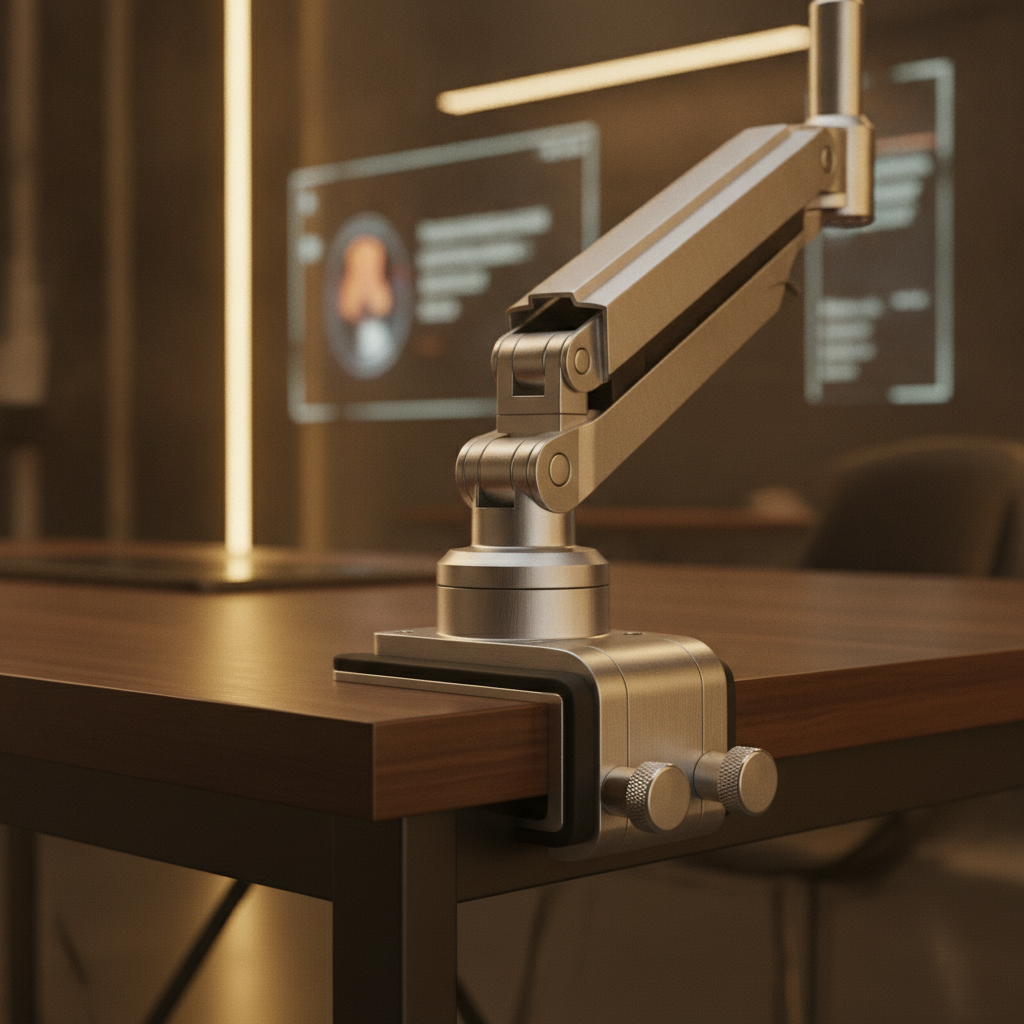
A monitor arm clamp lets you lift your screen off the desk and free up space. But before you buy one, you must check if it fits your desk. A wrong fit can scratch your table, crack the surface, or drop your monitor. This guide shows you how to test your desk in five minutes. You will learn what to measure, what to avoid, and how to install a monitor arm clamp safely. By the end, you will know if your desk is ready or needs a fix.
Before you start, gather a tape measure, a ruler, a flashlight, and a pencil. You may also need a small mirror to see under the desk. These simple tools help you check every detail. Let’s begin.
Quick Compatibility Checklist – 5-Minute Monitor Arm Clamp Test
Use this fast checklist before you buy a monitor arm clamp. If your desk fails any check, stop and read the matching section below.
Desk Thickness Measurement
Measure the desk edge with a ruler. Most monitor arm clamp models fit desks between 10 mm and 85 mm thick. Write down your number.
Edge Shape Assessment
Look at the desk edge from the side. A flat edge works best. Rounded or curved edges may block the clamp jaw from touching the full surface.
Under-Desk Clearance Check
Check the space under the desk edge. You need at least 50 mm of open room for the clamp bolt and lower jaw to fit.
Material Compatibility Verification
Know what your desk is made of. Solid wood and thick MDF are safe. Glass, hollow-core, or thin particleboard need extra care.
Monitor Weight & VESA Pattern Check
Check your monitor weight without the stand. Most monitor arm clamp arms hold 2 to 9 kg. Match the VESA pattern (75×75 mm or 100×100 mm) to the arm plate.
How to Measure Your Desk for Monitor Arm Clamp Clamp Compatibility
Accurate measurements stop problems before they start. Take your time with each step.
Measuring Desktop Thickness at Mounting Point
Place the ruler on the exact spot where the monitor arm clamp will sit. Measure from the top surface to the bottom edge. Do not guess. A 2 mm error can block the clamp.
Checking Clamp Opening Range (Min-Max Specifications)
Read the product box or manual. Each monitor arm clamp lists a min and max desk thickness. Your desk must fall inside this range.
Accounting for Reinforcement Plates
If you plan to use a reinforcement plate, add its thickness (usually 3 to 6 mm) to your desk thickness. Make sure the total still fits the clamp range.
Measuring Rear Clearance for Clamp Installation
Check the space behind the desk edge. The clamp bolt needs room to turn. Leave at least 30 mm of clear space behind the mounting point.
Evaluating Desk Edge Shape for Clamp Contact Area
The shape of your desk edge decides how well the monitor arm clamp grips. A poor match leads to slipping or tilting.
Flat Edge Requirements (Minimum 1-Inch Contact Zone)
A flat edge gives the clamp jaw full contact. You need at least 25 mm of flat surface on both the top and bottom of the desk edge.
Rounded Edge Compatibility Issues
Rounded edges reduce the contact area. The monitor arm clamp may tilt forward. Use a shim or reinforcement plate to fill the gap.
Beveled and Chamfered Edge Problems
Beveled edges angle away from the clamp. This weakens the grip. A thin rubber pad can help, but a flat edge is always better.
Waterfall Edge and Decorative Lip Challenges
Waterfall edges curve down at the front. The lower jaw of the monitor arm clamp cannot sit flush. You may need to move the clamp to a flat section or use a grommet mount.
Tapered and Recessed Underside Solutions
If the underside of the desk is thinner than the top, the lower jaw may not reach. Add a wooden block or plate to bridge the gap for the monitor arm clamp.
Under-Desk Obstruction Check for Monitor Arm Clamp Mounting
Look under your desk with a flashlight. Hidden parts can block the monitor arm clamp bolt or lower jaw.
Identifying Support Rails and Aprons
Many desks have wooden or metal rails under the top. These rails sit close to the edge. Measure the distance from the edge to the rail. The clamp needs at least 60 mm of clear space.
Drawer Box and Cable Tray Interference
Drawers and cable trays often sit right under the desk edge. The monitor arm clamp bolt may hit them. Move the tray or pick a different mounting spot.
Standing Desk Crossbar Clearance
Standing desks have a crossbar between the legs. This bar can block the clamp bolt. Check the height of the bar before you buy a monitor arm clamp.
Control Box and Frame Member Obstacles
Motor control boxes on standing desks hang under the top. Keep the monitor arm clamp at least 100 mm away from these boxes.
Lower Jaw Contact Area Requirements
The lower jaw of the monitor arm clamp needs a flat, clean surface. Remove dust, stickers, or old pad marks before you tighten.
Desk Material Compatibility Guide for Monitor Arm Clamps
The material of your desk decides if a monitor arm clamp is safe. Some materials crack under pressure.
Solid Wood Desk Clamp Safety
Solid wood is the best match for a monitor arm clamp. It holds the load well and does not crush. Tighten the clamp until it is firm, but do not over-tighten.
MDF and Particleboard Considerations
MDF and particleboard are soft. A monitor arm clamp can dent them over time. Use a reinforcement plate on both the top and bottom to spread the load.
Hollow-Core Desk Warnings
Hollow-core desks have a thin skin over empty space. A monitor arm clamp can break through. Do not use a clamp on these desks without a large reinforcement plate.
Laminate and Bamboo Surface Protection
Laminate and bamboo are hard but can chip. Place the rubber pads that come with the monitor arm clamp before you tighten.
Glass and Stone Desk Restrictions
Never put a monitor arm clamp on glass or stone without the maker’s approval. These materials can crack with point pressure.
When Reinforcement Plates Are Required
Use a reinforcement plate for soft, thin, or hollow desks. The plate spreads the force of the monitor arm clamp over a wider area.
Clamp vs Grommet Mounting: Which Monitor Arm Clamp Method Works?
Most monitor arms offer two mount types: clamp and grommet. Each has pros and cons.
Clamp Mount Advantages and Limitations
A monitor arm clamp needs no holes. You can move it to any desk. But it needs a flat edge and enough thickness.
Grommet Mount Hole Diameter Requirements
A grommet mount uses a hole in the desk. The hole is usually 10 mm to 60 mm wide. Check the arm manual for the right size.
Grommet Hole Distance from Edge
The grommet hole must sit at least 50 mm from the desk edge. A hole too close to the edge can crack the desk.
When to Choose Grommet Over Clamp
Pick grommet when your desk has a curved edge, is too thick, or has no clear space under the edge. A grommet mount gives a cleaner look.
Hybrid Mounting Options
Some monitor arm clamp kits include both clamp and grommet parts. You can switch between them as your desk changes.
Reinforcement Plates for Monitor Arm Clamp Compatibility
A reinforcement plate is a flat piece of wood or metal. It sits between the desk and the monitor arm clamp to spread the load.
When You Need a Reinforcement Plate
You need a plate for soft, thin, or hollow desks. You also need one if the desk edge is rounded or beveled.
Proper Plate Placement (Top and Bottom)
Place one plate on top of the desk under the upper jaw, and one under the desk under the lower jaw. This doubles the support for the monitor arm clamp.
Plate Size and Thickness Specifications
Use a plate at least 150 mm wide and 100 mm deep. Thickness should be 6 mm to 12 mm. Plywood or MDF works well.
Pressure Distribution Benefits
A plate spreads the force of the monitor arm clamp over a wider area. This stops dents, cracks, and tilting.
Limitations of Reinforcement Plates
Plates add height. Make sure the total thickness (desk + plate) still fits the monitor arm clamp range. Plates also add weight and may shift if not fixed.
Standing Desk Monitor Arm Clamp Compatibility Issues
Standing desks move up and down. This motion adds new challenges for a monitor arm clamp.
Desktop Flex During Height Adjustment
Some standing desk tops bend a little when they move. This flex can loosen the monitor arm clamp over time. Check the tightness every month.
Frame Rail and Crossbar Obstructions
The frame of a standing desk often has rails near the edge. These rails can block the monitor arm clamp bolt. Measure before you buy.
Cable Slack and Drag Management
When the desk moves, cables pull on the monitor. Leave extra slack in the cables so the monitor arm clamp does not twist.
Vibration and Stability at Standing Height
Tall standing desks may shake when you type. A longer monitor arm arm makes this worse. Keep the arm short and the monitor close for a stable monitor arm clamp setup.
Manufacturer Approval Requirements
Some standing desk makers void the warranty if you use a monitor arm clamp. Check the warranty paper before you install.
Optimal Clamp Placement on Standing Desks
Put the monitor arm clamp near the back edge of the desk, over a solid part of the frame. This gives the best support and avoids the crossbar.
Monitor and Arm Specifications for Clamp Compatibility
The monitor and arm must match the desk and the monitor arm clamp.
Monitor Weight Without Stand (Static vs Dynamic Load)
Weigh your monitor without the stand. The monitor arm clamp arm must hold this weight when still (static) and when you move it (dynamic). Add 1 kg for cables.
VESA Pattern Compatibility (75x75mm vs 100x100mm)
Check the four holes on the back of your monitor. Most are 75×75 mm or 100×100 mm. The monitor arm clamp VESA plate must match.
Arm Weight Capacity and Safety Margin
Pick an arm rated 20% above your monitor weight. This safety margin helps the monitor arm clamp last longer.
Ultrawide and Curved Monitor Considerations
Ultrawide monitors are heavy and long. They put more torque on the monitor arm clamp. Use a heavy-duty arm and check the desk edge often.
Multi-Monitor Combined Load Calculations
Add the weight of all monitors for a dual or triple arm. Make sure the monitor arm clamp and desk can hold the total load.
Gas Spring Tension Adjustment
After you mount the monitor, adjust the gas spring. Turn the screw until the monitor stays where you put it. This takes load off the monitor arm clamp.
Step-by-Step Monitor Arm Clamp Installation Process
Follow these steps to install your monitor arm clamp safely.
Step 1: Pre-Installation Compatibility Verification
Go through the quick checklist again. Make sure your desk thickness, edge shape, and material all match the monitor arm clamp.
Step 2: Assembling Base and Post Before Mounting
Put the arm post into the base on a soft towel. Do not tighten fully yet. This makes the next step easier.
Step 3: Positioning Clamp with Protective Pads
Place the rubber pads on the upper and lower jaws. Open the monitor arm clamp wide and slide it onto the desk edge. Center it over the mounting spot.
Step 4: Progressive Tightening Technique
Tighten the clamp bolt in small turns. Alternate between the top and bottom bolts if there are two. Stop when the clamp is firm and does not move.
Step 5: Attaching VESA Plate and Monitor
Screw the VESA plate to the back of the monitor. Slide the monitor onto the arm post until it clicks. Give it a gentle pull to make sure it is locked.
Step 6: Adjusting Gas Spring Tension
Use the small screw on the arm to set the tension. Lift the monitor and let go. It should stay where you leave it. Adjust until it does.
Step 7: Cable Management and Service Loop
Run the cables through the arm clips. Leave a service loop so the cables do not pull when you move the monitor. This protects the monitor arm clamp from side loads.
Troubleshooting Monitor Arm Clamp Compatibility Problems
Here are fixes for the most common monitor arm clamp issues.
Clamp Tilting or Slipping Solutions
Tighten the bolt more. If it still tilts, the desk edge is not flat. Add a reinforcement plate or move the clamp to a flat spot.
Desk Surface Denting Fixes
Dents mean the load is too high for the desk material. Add a reinforcement plate right away. Loosen the monitor arm clamp a little and retighten over the plate.
Arm Wobble and Vibration Remedies
Wobble comes from a loose clamp or a weak desk. Tighten the monitor arm clamp. If the desk is thin, add a plate. Shorten the arm if it is too long.
Clamp Won’t Open Wide Enough
Your desk is thicker than the monitor arm clamp allows. Do not force it. Return the arm and pick one with a wider range, or use a grommet mount.
Monitor Drifting Up or Down
This is a gas spring issue, not a clamp issue. Adjust the tension screw. If it still drifts, the spring may be worn out.
Grommet Mount Twisting Issues
The bolt under the desk is loose. Tighten it. If the hole is too big, add a metal washer under the bolt head for the monitor arm clamp.
Cable Pulling During Movement
Leave more slack in the cables. Route them through the arm clips. Make sure the monitor arm clamp is tight so the arm does not shift.
FAQ: Common Questions About Monitor Arm Clamp Compatibility
What If My Desk Is Too Thick for the Clamp?
You cannot use that monitor arm clamp. Buy one with a wider range, or drill a grommet hole if your desk allows it.
Can I Use a Monitor Arm Clamp on a Glass Desk?
Only if the glass maker says it is safe. Most glass desks are not made for point loads from a monitor arm clamp.
How Much Weight Can a Monitor Arm Clamp Hold?
The clamp itself can hold a lot, but the desk is the weak link. Solid wood desks can hold 20 kg or more. Thin particleboard may fail at 5 kg.
Do I Need a Reinforcement Plate for My Desk?
Yes, if your desk is soft, thin, or hollow. A plate stops dents and cracks under the monitor arm clamp.
Will a Monitor Arm Clamp Damage My Desk?
It can, if the desk is soft or the clamp is too tight. Use the rubber pads and a reinforcement plate to protect the surface.
Can I Install a Monitor Arm Clamp Myself?
Yes. Most monitor arm clamp kits need only a hex key and 15 minutes. Follow the steps in this guide.
What If My Desk Has No Flat Edge?
Use a grommet mount instead. Or add a flat wood block to the edge so the monitor arm clamp has a flat surface to grip.
Safety Limits: When NOT to Install a Monitor Arm Clamp
Some desks should never hold a monitor arm clamp. Know the red flags.
Unsupported Glass or Stone Desktops
Glass and stone can crack under clamp pressure. Do not use a monitor arm clamp unless the maker says it is safe.
Hollow-Core Surfaces Without Reinforcement
The clamp can break through a hollow-core desk. Never mount a monitor arm clamp on these without a large plate.
Damaged or Delaminating Desktops
If the desk surface is peeling or cracked, the clamp will make it worse. Fix the desk first or pick a new spot.
Insufficient Edge Clearance
If there is no room under the desk for the bolt, the monitor arm clamp will not fit. Do not force it.
Exceeding Manufacturer Specifications
Never put a heavier monitor on the arm than the maker allows. This can break the monitor arm clamp and drop your screen.
Alternative Mounting Solutions
If your desk fails the test, try a wall mount, a floor stand, or a grommet mount. These options work when a monitor arm clamp cannot.
Conclusion and Final Compatibility Recommendations
A monitor arm clamp is a great way to lift your screen and clear your desk. But it only works if your desk is ready. Measure the thickness, check the edge shape, look under the desk, and know the material. Use a reinforcement plate for soft or thin desks. Match the arm to your monitor weight and VESA pattern. Follow the step-by-step install guide, and fix problems early with the troubleshooting tips. If your desk fails the test, try a grommet mount or a wall mount instead. Take five minutes to check, and your monitor arm clamp will hold safe for years.