

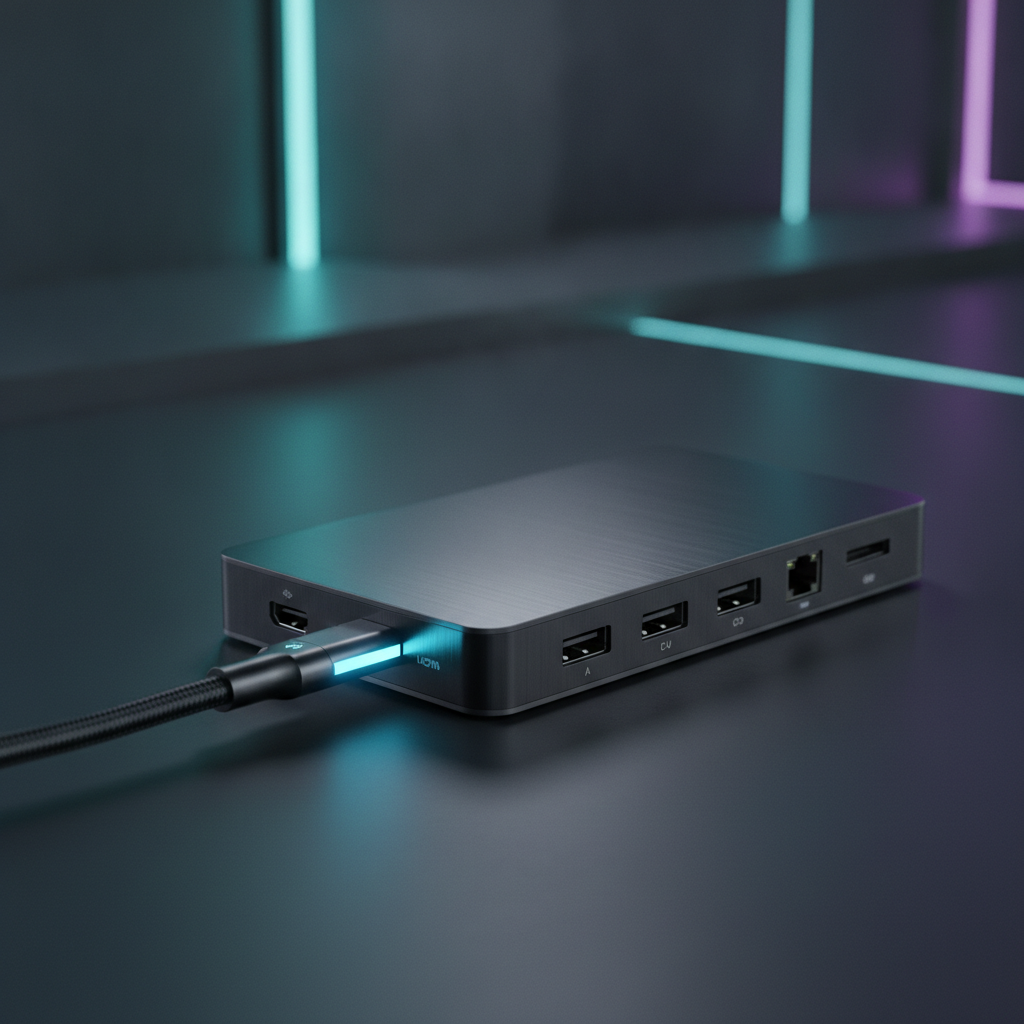
Quick Summary: USB-C Dock Power Delivery Essentials
Key Takeaways at a Glance
USB-C dock power delivery lets you charge your laptop and connect peripherals through one cable. Here is what you need to know:
- Match your dock’s output wattage to your laptop’s needs — this is the most important rule.
- A 100W dock is the best choice for most users in 2026.
- Your USB-C cable matters just as much as the dock. A weak cable limits power.
- Power overhead means your dock uses some wattage for itself. A 100W dock may only send 90W to your laptop.
- PD 3.1 docks now support up to 140W or even 240W for high-power laptops.
Who This USB-C Dock Power Delivery Guide Is For
This guide is for students, remote workers, and anyone who uses a laptop with a USB-C dock. If you want a clean desk with one cable for charging, monitors, and accessories, this guide will help you set it up the right way.
Understanding USB-C Power Delivery Basics
What Is USB-C Power Delivery (PD)?
USB-C Power Delivery (PD) is a standard that lets devices share power through a USB-C cable. Think of it as a conversation between your charger and your laptop. They agree on how much power to send. USB-C dock power delivery uses this same system to charge your laptop while also connecting your monitor, keyboard, and mouse.
USB-C PD 3.0 vs. PD 3.1: What’s the Difference in 2026?
PD 3.0 supports up to 100W of power. PD 3.1 adds the Extended Power Range (EPR), which pushes the limit to 240W. Most docks in 2026 still use PD 3.0 for standard charging. PD 3.1 is mainly found in newer, premium docks designed for high-power laptops.
How Power Negotiation Works Between Dock, Cable, and Laptop
When you plug in your dock, three things talk to each other: the dock, the cable, and your laptop. They share information about how much power each can handle. Then they pick the highest safe power level. If your cable only supports 60W, the system will not send 100W — even if the dock can. This is why cable choice matters for USB-C dock power delivery.
Maximum Wattage Levels: 60W, 100W, 140W, and 240W Explained
| Wattage Level | PD Version | Best For |
|---|---|---|
| 60W | PD 3.0 | Thin laptops, tablets, Chromebooks |
| 100W | PD 3.0 | Most business and student laptops |
| 140W | PD 3.1 | MacBook Pro 16″, high-end ultrabooks |
| 240W | PD 3.1 | Gaming laptops, workstations (limited support) |
How to Determine Your Laptop’s Power Requirements
Step 1: Find Your Laptop’s Required Wattage
Look at the power adapter that came with your laptop. The wattage is printed on the label. For example, it might say “20V ⎓ 5A” — multiply those numbers: 20 × 5 = 100W. You can also search your laptop model online to find its USB-C charging requirement.
Step 2: Identify Your Laptop’s USB-C Charging Port
Not all USB-C ports can charge your laptop. Look for a small battery icon or a lightning bolt symbol next to the port. Your laptop’s manual will tell you which port supports USB-C dock power delivery. Some laptops only charge through one specific USB-C port.
USB-C Dock Power Delivery Wattage Chart by Laptop Model
| Laptop Model | Required Wattage | Recommended Dock |
|---|---|---|
| MacBook Air M3/M4 | 30-35W | 60W dock |
| MacBook Pro 14″ | 67-96W | 100W dock |
| MacBook Pro 16″ | 96-140W | 140W dock |
| Dell XPS 13 | 45W | 60W dock |
| Dell XPS 15 | 90-130W | 100W+ dock |
| Lenovo ThinkPad X1 Carbon | 45-65W | 65-90W dock |
| Lenovo ThinkPad T14 | 45-65W | 65W dock |
| Gaming Laptops (general) | 130-230W | Use original adapter |
Why Using the Wrong Wattage Causes Charging Problems
If your dock sends less power than your laptop needs, your battery will drain slowly even while plugged in. If the wattage is too low, your laptop may show “Plugged in, not charging.” In rare cases, a mismatch can cause slow data transfer or disconnected peripherals.
How to Choose the Right USB-C Dock for Power Delivery
Dock Input Wattage vs. Host Output Wattage: The Critical Difference
This is the most common mistake people make. A dock’s “input wattage” is how much power its adapter draws from the wall. The “host output wattage” is how much power it actually sends to your laptop. These numbers are not the same. A dock with a 180W adapter might only output 100W to your laptop because it uses the rest for its own parts.
Understanding Dock Power Overhead (Why 100W ≠ 100W to Your Laptop)
Docks use power for their own functions. Running USB ports, Ethernet, video outputs, and internal chips all consume energy. This is called “power overhead.” A dock rated at 100W might pass through only 85-90W to your laptop. Always check the “host charging output” spec, not just the adapter wattage.
Key Specifications to Check Before Buying a USB-C Dock
- Host PD output wattage — how much power reaches your laptop
- PD version — 3.0 for up to 100W, 3.1 for 140W+
- Number of display outputs — each display uses some power
- Data transfer speed — 5Gbps, 10Gbps, or 40Gbps
- Ethernet port — adds convenience but uses a small amount of power
Thunderbolt 4 vs. USB4 vs. USB-C Docks for Power Delivery
Thunderbolt 4 docks offer the most reliable performance. They guarantee 40Gbps data speed and support up to 100W charging. USB4 docks can also be fast, but their features vary by brand. Basic USB-C docks are the cheapest option but may have lower data speeds. For USB-C dock power delivery, the charging wattage matters more than the data standard.
Best USB-C Dock Wattage Recommendations by Use Case
- Student with a thin laptop: 60-65W dock
- Office worker with a business laptop: 90-100W dock
- Creative professional with MacBook Pro 16″: 140W dock
- Gaming laptop user: Keep your original adapter; use a USB-C hub for peripherals only
How to Select the Correct USB-C Cable for Power Delivery
USB-C Cable Power Ratings: 3A vs. 5A Explained
USB-C cables carry different amounts of current. A 3A cable handles up to 60W. A 5A cable handles up to 100W or more. If your laptop needs 90W but you use a 3A cable, you will only get 60W. Always match the cable to your power needs.
What Is an eMarker Chip and Why Does It Matter?
An eMarker is a tiny chip inside your USB-C cable. It tells your laptop and dock what the cable can handle. Without an eMarker, the system assumes the cable can only carry 3A (60W). For USB-C dock power delivery above 60W, you need a cable with a 5A eMarker. This chip keeps your setup safe by preventing too much power from flowing through a weak cable.
How to Identify Your USB-C Cable’s Power Capability
Check the cable’s packaging or product page. Look for labels like “100W,” “5A,” or “eMarker.” If the cable came with a laptop or dock, it usually supports the same wattage. When in doubt, buy a certified cable from a trusted brand. Cheap cables often lack the eMarker chip.
PD 3.1 EPR Cables: Do You Need a 240W Cable?
Most users do not need a 240W cable. You only need one if your laptop and dock both support PD 3.1 at 140W or higher. For 95% of setups, a good 100W (5A) cable is enough. PD 3.1 EPR cables are still new and cost more.
Common USB-C Cable Mistakes That Limit Power Delivery
- Using a charging cable from a phone (usually only 15-27W)
- Using a long cable over 2 meters without checking its rating
- Using a cable built for data only, not power
- Mixing up USB-C cables that look identical but have different ratings
How to Set Up USB-C Dock Power Delivery (Step-by-Step)
Step 1: Connect the Dock’s Power Adapter
Plug the dock’s power adapter into a wall outlet. Then connect it to the dock’s power input port. Make sure you use the adapter that came with the dock. A weaker adapter will reduce the power available for your laptop. Wait for the dock’s LED light to turn on.
Step 2: Connect the USB-C Cable to Your Laptop
Use the USB-C cable that came with the dock, or a certified 5A cable. Plug one end into the dock’s upstream USB-C port (often marked with a laptop icon). Plug the other end into your laptop’s charging USB-C port. You should hear a chime or see a charging icon on your screen.
Step 3: Verify Power Delivery Is Working
Check your laptop’s battery icon. It should show a charging symbol. On Windows, click the battery icon in the taskbar to see the charging status. On Mac, click the battery icon in the menu bar. If it says “Charging,” your USB-C dock power delivery is working.
Step 4: Test Charging Speed and Stability
Leave your laptop plugged in for 15 minutes. Watch the battery percentage. It should go up steadily. If it stays the same or drops, your dock may not provide enough wattage. You can also use a free app like BatteryInfoView (Windows) or CoconutBattery (Mac) to check the actual charging wattage.
Step 5: Optimize Your USB-C Dock Setup for Maximum Power
Disconnect any devices you do not need. Each connected device uses a small amount of the dock’s power. If your dock has an “eco mode” or power-saving setting, turn it off for maximum charging speed. Keep the dock in a well-ventilated area to prevent overheating.
How to Troubleshoot USB-C Dock Power Delivery Issues
Laptop Not Charging Through USB-C Dock: Fixes
- Make sure you are using the correct USB-C port on both the dock and the laptop.
- Check that the dock’s power adapter is plugged in and the LED is on.
- Try a different USB-C cable rated for your laptop’s wattage.
- Restart your laptop with the dock already connected.
- Update your laptop’s BIOS and dock’s firmware.
Slow Charging or “Plugged In, Not Charging” Solutions
This usually means your dock does not send enough power. Check if your dock’s host output matches your laptop’s requirement. If your laptop needs 90W but the dock only outputs 60W, you will see this message. The fix is to use a higher-wattage dock or plug in your laptop’s original charger.
USB-C Dock Overheating During Power Delivery
Docks get warm during use, but they should not feel hot. If your dock is overheating, move it away from direct sunlight and other heat sources. Make sure air can flow around it. Do not stack other devices on top of the dock. If it keeps getting very hot, the dock may be faulty.
Intermittent Charging: Causes and Solutions
If charging starts and stops, the problem is usually a loose cable. Try a different USB-C cable. Make sure the cable clicks firmly into both ports. A damaged port can also cause this. Check for dust or debris in your laptop’s USB-C port and clean it gently with a soft brush.
Display Works but Laptop Won’t Charge: What to Do
This means data is flowing but power is not. Check that you are using the dock’s correct upstream port. Some docks have multiple USB-C ports, but only one supports power delivery. Also verify that your dock’s power adapter is strong enough to run both the display and the laptop charger at the same time.
USB-C Dock Power Delivery Troubleshooting Checklist
- Is the dock’s power adapter plugged in and turned on?
- Are you using the correct USB-C cable (rated for your wattage)?
- Is the cable connected to the right ports on both ends?
- Does your dock’s output wattage meet your laptop’s needs?
- Have you updated your laptop’s firmware and dock’s firmware?
- Have you tried a different cable or a different dock?
USB-C Dock Power Delivery Compatibility Guide
MacBook Pro and USB-C Dock Power Delivery (2026)
The MacBook Pro 14″ needs 67-96W. The MacBook Pro 16″ needs 96-140W. For the 16-inch model, you need a PD 3.1 dock that supports 140W output to get full charging speed. A 100W dock will charge it, but more slowly. Apple’s MagSafe port can also be used alongside USB-C for extra power.
Dell XPS and Latitude USB-C Dock Compatibility
Dell XPS 13 works well with 45-65W docks. The XPS 15 needs at least 90W for proper charging. Dell Latitude laptops are designed for dock use and work with most 65W USB-C docks. Dell’s own dock line (WD19, WD22) is optimized for their laptops.
Lenovo ThinkPad USB-C Dock Power Requirements
ThinkPad laptops are very dock-friendly. The X1 Carbon needs 45-65W. The T14 and T16 series need 45-65W. Lenovo’s ThinkPad USB-C docks (like the Universal Thunderbolt 4 Dock) are made to match perfectly. They pass through the exact wattage your ThinkPad needs.
Gaming Laptops and High-Power USB-C Dock Needs
Most gaming laptops need 150-330W — far more than any USB-C dock can provide. USB-C dock power delivery for gaming laptops can maintain battery level during light tasks, but you should always use the original power brick for gaming. Use the dock only for connecting peripherals and monitors.
Can Any USB-C Dock Charge Any Laptop?
No. The laptop must have a USB-C port that supports power input (not all do). The dock must output enough wattage for that laptop. And the cable must support the required power level. When all three match, USB-C dock power delivery works perfectly.
FAQ: Common Questions About USB-C Dock Power Delivery
Can a 100W USB-C Dock Charge a 100W Laptop?
Yes, but barely. After dock overhead, you may only get 85-90W. Your laptop will charge, but slowly under heavy use. For a perfect match, choose a dock rated 20-30W above your laptop’s requirement.
Does a USB-C Dock Reduce Charging Speed?
Slightly. The dock uses some power for itself (typically 10-15W). This means your laptop gets less than the dock’s full output. But the difference is small for most setups.
Do I Need a Special Cable for USB-C Dock Power Delivery?
You need a cable rated for your power level. For up to 60W, any good USB-C cable works. For 61-100W, you need a 5A eMarker cable. For 140W+, you need a PD 3.1 EPR cable.
Can a USB-C Monitor Replace a Docking Station for Charging?
Some USB-C monitors can charge your laptop at 60-90W while displaying video. This works well for simple setups. But a dock gives you more ports and higher power. If you need multiple peripherals, a dock is the better choice.
What Happens If My USB-C Dock Has Lower Wattage Than My Laptop Needs?
Your laptop will charge very slowly or not at all. Under heavy use, the battery may still drain. The laptop will usually show a warning message. The safest fix is to get a higher-wattage dock.
Is USB-C PD 3.1 Backward Compatible with PD 3.0 Devices?
Yes. A PD 3.1 dock will work with a PD 3.0 laptop. It will simply charge at the lower PD 3.0 level. You will not get the full 140W or 240W, but everything will work safely.
Final Recommendations: Building Your Ideal USB-C Dock Power Delivery Setup
Building the right USB-C dock power delivery setup comes down to three things: know your laptop’s wattage, pick a dock that exceeds that wattage, and use the right cable. For most people, a 100W Thunderbolt 4 dock with a 5A eMarker cable is the sweet spot. If you have a MacBook Pro 16″ or another high-power laptop, invest in a 140W PD 3.1 dock.
Start by checking your laptop’s power requirement today. Then compare it to the dock’s host output spec — not the adapter wattage. Finally, make sure your cable matches. Follow these steps and you will enjoy a clean, one-cable desk setup that charges your laptop reliably all day long.