

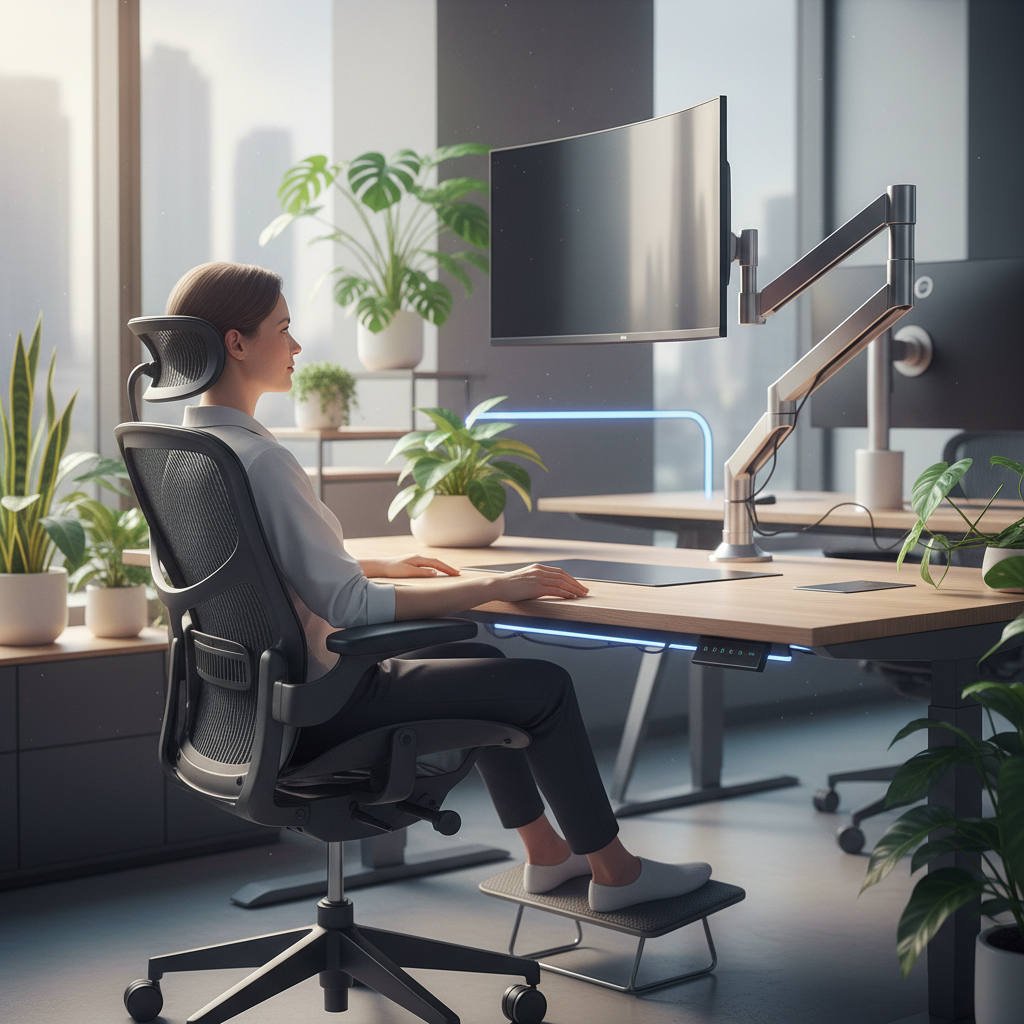
Spending hours in front of a screen can hurt your neck, eyes, and back if your monitor sits at the wrong height. This monitor height ergonomics guide shows you how to fix your screen position in simple steps. Small changes to your desk setup can stop pain before it starts.
Why Correct Monitor Height Is Critical for Your Neck, Eyes, and Back
When your monitor is too high, you tilt your head back. This puts pressure on your neck muscles and spine. When it sits too low, you hunch forward. Both positions lead to pain. Your eyes also suffer. Wrong screen height causes dry eyes, blurry vision, and headaches.
- Neck pain from looking up or down too much
- Shoulder and upper back stiffness
- Eye fatigue and trouble focusing
- Lower back pain from bad posture
Who This Monitor Height Ergonomics Guide Is For
This guide helps office workers, students, gamers, and anyone who uses a computer for more than two hours a day. If you feel neck or eye strain after work, this monitor height ergonomics guide is for you.
Understanding the Science: Why 15–20° Downward Gaze Is the Ergonomic Gold Standard
Studies show that looking slightly down at your screen is best for your body. A 15–20° downward gaze keeps your eyelids lower. This reduces dry eyes and strain. Your neck stays in a relaxed, neutral position.
The Top-Third Rule vs. Center-of-Screen: Which Is Correct in 2026?
In 2026, experts agree: the top third of your screen should sit at eye level. This lets you look down at the center without tilting your head. Old rules said the center should match your eyes. Now we know that causes neck strain over time.
What OSHA and ISO 9241 Say About Monitor Positioning Today
OSHA and ISO 9241 standards state that the top of the screen should be at or just below eye level. The screen must sit 45–70 cm from your eyes. Tilt it slightly back at the top for best view.
How Monitor Height Affects Neck Strain, Eye Fatigue, and Posture
Correct monitor height keeps your head balanced over your spine. Your neck muscles stay relaxed. Your eyes blink more often, keeping them moist. Good screen height leads to better posture and less pain.
How to Set Your Monitor Height: Step-by-Step Ergonomics Guide
Follow this monitor height ergonomics guide to set up your screen in five easy steps. You only need a tape measure and about ten minutes.
Preparation tools:
- Tape measure
- Level (optional)
- Monitor arm or riser blocks
- Chair with height adjustment
Step 1 — Measure Your Seated and Standing Eye Height
Sit in your work chair with your feet flat on the floor. Have a friend measure from the floor to your eye level. Write this number down. If you use a sit-stand desk, also measure your standing eye height. Typical seated eye height is 110–120 cm from the floor.
Step 2 — Set Your Chair and Desk Height First
Adjust your chair so your feet rest flat on the floor. Your knees should form a 90° angle. Your elbows should sit at desk height, forming another 90° angle. Set the desk height to match your elbow level. This creates a stable base for the rest of the setup.
Step 3 — Position the Monitor at the Correct Distance (Arm’s Length Rule)
Sit back in your chair and stretch your arm out. Your fingertips should just touch the screen. For most people, this is 50–70 cm. Larger screens need more distance. A 34-inch screen should sit about 70–80 cm away.
Step 4 — Align the Top Third of the Screen at Eye Level
Move the monitor up or down until the top line of the screen matches your eye height. When you look straight ahead, you should see the upper third. The center of the screen will sit about 15° below your gaze.
Step 5 — Adjust Tilt Angle to −10° to −20° for Optimal Line of Sight
Tilt the top of your screen slightly away from you by 10–20°. This matches your downward gaze angle. It also reduces glare from lights above. Use your monitor’s built-in tilt or add a small wedge if needed.
Monitor Height Ergonomics Guide for Sit-Stand Desk Users
Standing changes your eye height by 25–35 cm. Your monitor must move up when you stand. This part of the monitor height ergonomics guide shows how to switch between sitting and standing with ease.
How Much Should You Raise the Monitor When Standing?
When you stand, raise your monitor to match your new eye level. The top third rule still applies. Most sit-stand desk users raise their screens 25–35 cm when standing. A motorized arm makes this change simple.
Dynamic Transition Chart: Sitting vs. Standing Eye Level Changes
| User Height | Seated Eye Level | Standing Eye Level | Monitor Rise Needed |
|---|---|---|---|
| 155 cm | 100 cm | 135 cm | 35 cm |
| 165 cm | 105 cm | 142 cm | 37 cm |
| 175 cm | 112 cm | 150 cm | 38 cm |
| 185 cm | 118 cm | 157 cm | 39 cm |
Avoiding “Computer Vision Syndrome” During Posture Switches
When you switch between sitting and standing, take 20 seconds to refocus your eyes. Look at something far away first, then return to your screen. This helps your eyes adjust to the new screen height.
Monitor Height Ergonomics Guide for Dual, Triple, and Vertical Monitor Setups
Multiple screens add complexity. This monitor height ergonomics guide section shows you how to align each screen for smooth transitions.
Primary vs. Secondary Monitor Height Alignment Rules
Your main screen must follow the top-third rule. Place it right in front of you. Secondary screens should sit at the same height or up to 5 cm lower. Tilt them 15–30° toward you to reduce neck turning.
The Multi-Monitor Height Matrix: Vertical Drop for Angled Side Screens
Side screens that angle inward should have their centers at the same height as your primary screen center. If they tilt 30° or more, lower them 2–3 cm to match your side gaze line.
Vertical Monitor Orientation — Height and Tilting Considerations
When you turn a screen vertical for code or documents, the top of the rotated screen should still sit at your eye level. Tilt it slightly more (up to 25°) because vertical text has longer lines that drop lower.
Monitor Height Ergonomics Guide for Ultrawide and Curved Screens (34″+)
Big curved screens change how you view content. This monitor height ergonomics guide part covers how to set up screens from 34 to 55 inches.
How to Position a 34-Inch, 49-Inch, or 55-Inch Ultrawide Monitor
For a 34-inch ultrawide, sit 65–80 cm away. For 49 inches, sit 80–100 cm away. Place the screen so its center faces your nose. The top third still sits at eye level.
Curvature Alignment: Matching Screen Arc to Your Eye Arc
A curved screen wraps around your vision. Sit in the center point of the curve. Your eyes should trace the same arc as the screen. If the screen bends more than 1800R, sit closer to match the curve.
Tilt and Height Adjustments for Edge-to-Edge Visibility
Ultrawide screens need slight tilt — around 5–10° — to keep the top and bottom edges clear. Raise the screen 2–3 cm higher than a flat panel so the edges don’t drop below your lower sightline.
Monitor Height Adjustments for Laptops and Hybrid Desk Setups
Laptops sit too low for good posture. This part of the monitor height ergonomics guide solves the laptop height problem.
Fixing the “Too-Low” Laptop Screen Problem (Tech Neck Prevention)
Use a laptop stand to raise the screen to eye level. This stops you from looking down and straining your neck (called “tech neck”). Pair it with an external keyboard and mouse for full comfort.
Laptop + External Monitor: How to Align Two Screens at Different Heights
Set your main monitor at the correct ergonomic height. Then raise your laptop to match, placing it to the side. Treat the laptop as a secondary screen — it should sit no more than 5 cm different from your main display.
Best Laptop Stand Heights for Ergonomic Viewing in 2026
In 2026, the best laptop stands raise the screen 10–20 cm above the desk. Look for adjustable models that let you match your seated eye height. A good stand supports screens up to 17 inches.
Monitor Height Ergonomics Guide for Gaming Setups vs. Office Work
Gaming setups often use reclined postures. This monitor height ergonomics guide section explains how to adapt screen height for play.
Reclined Gaming Posture: Why Your Monitor Should Be 10–15 cm Lower
When you lean back 110–120°, your gaze angle shifts up. Lower your monitor 10–15 cm from office height so you don’t tilt your head back. This keeps your neck neutral during long sessions.
How Torso Angle (90° vs. 110–120°) Changes Required Screen Height
At 90° (upright), use the standard top-third rule. At 110–120° (reclined), drop the screen 10–15 cm. The further back you sit, the lower the screen needs to be.
Dual-Mode Setup: One Monitor for Both Office and Gaming
If you use the same screen for work and play, choose a middle height. Set it for office use (upright posture) and recline your chair 10° more when gaming. Some monitor arms let you save two height presets.
Monitor Height Adjustments for Special Health Needs and Vision Conditions
Not everyone can use the same screen height. This monitor height ergonomics guide section covers special cases.
Bifocals, Progressive Lenses, and Reading Glasses: How Much Lower to Go
If you wear bifocals or progressive lenses, lower your screen 5–10 cm more. This lets you look through the lower part of your lenses without tilting your head back. Reading glasses need about 10–15 cm lower screen height.
Cervical Spine Issues and Limited Neck Extension Adjustments
If you have neck injuries or limited movement, keep the screen lower. The top of the screen should sit at your natural forward gaze. Never force your neck to look up.
Ergonomic Screen Positioning for Taller and Shorter Users
The rules stay the same: top third at eye level. But taller users need higher desks and monitor arms that go up high enough (20+ inches of vertical range). Shorter users may need footrests and lower desk heights.
Choosing the Right Equipment: Monitor Arms vs. Risers vs. Desk Clamps
The right tool makes it easy to set the correct monitor height. This part of the monitor height ergonomics guide compares your options.
Height Range and Tilt Range Comparison Chart
| Equipment Type | Height Range | Tilt Range | Best For |
|---|---|---|---|
| Monitor Arm | 30–50 cm | -45° to +90° | Sit-stand desks, heavy screens |
| Riser Block | 5–15 cm | Fixed or limited | Budget setups, small adjustments |
| Desk Clamp Mount | 25–45 cm | -45° to +90° | Single screens, space saving |
Weight Capacity: Handling Heavy Ultrawides (15 kg+) Safely
Check the weight rating of any mount before buying. Many arms support up to 12 kg. For 49-inch ultrawides (15 kg+), choose gas-spring arms rated for 18 kg or more. Always center the weight on the mount.
Best Monitor Arm and Riser Options for Different Budgets in 2026
In 2026, budget risers start at $20–30. Mid-range arms cost $80–150. Premium arms with memory presets run $200–400. Pick one that fits your screen size and desk type.
Quick Self-Assessment Checklist: Is Your Monitor Height Ergonomically Correct?
Use this monitor height ergonomics guide checklist to test your setup:
- Your head stays balanced, not tilted up or down
- Top third of screen lines up with eye level
- You can read without squinting or moving closer
- Your neck feels relaxed after two hours of work
- No glare from overhead lights hits the screen
- Your shoulders stay down and back, not hunched
If you answer “no” to any of these, go back to Step 1 and adjust.
FAQ: Your Top Questions About Monitor Height and Screen Position
How High Should My Monitor Be From the Desk Surface?
The top of the screen should sit 5–10 cm above the desk surface for most users. This keeps the top third at eye level when you sit with proper posture. If you use a riser, measure from the desk to the top of the screen.
How Far Should I Sit From My Monitor?
Sit about an arm’s length away (50–70 cm). For screens over 27 inches, sit 70–90 cm back. The arm’s length rule in this monitor height ergonomics guide keeps your eyes at a comfort distance.
Should the Top or the Center of the Monitor Be at Eye Level?
The top third. If the top of the screen matches your eyes, the center will sit about 15° below your gaze. This is the best position for your neck and eyes over long work hours.
Can a Monitor Arm Fix My Neck and Back Pain?
Yes, in most cases. A monitor arm lets you fine-tune height, distance, and tilt. Many users feel relief within a few days of proper setup. Pair it with good chair support for best results.
What Is the Ideal Monitor Tilt Angle for Reducing Glare and Eye Strain?
Tilt the screen back 10–20° (top away from you). This matches your downward gaze and sends overhead light reflections up and away from your eyes. Use an anti-glare screen if needed.
Final Thoughts: Make This One Adjustment and Feel the Difference All Day
Setting the right monitor height takes just ten minutes but brings days of comfort. This monitor height ergonomics guide has shown you the science, the steps, and the tools to fix your screen position. Start with Step 1 today, test the checklist, and notice how your body feels. Small tweaks lead to big changes. Your neck, eyes, and back will thank you tomorrow.