

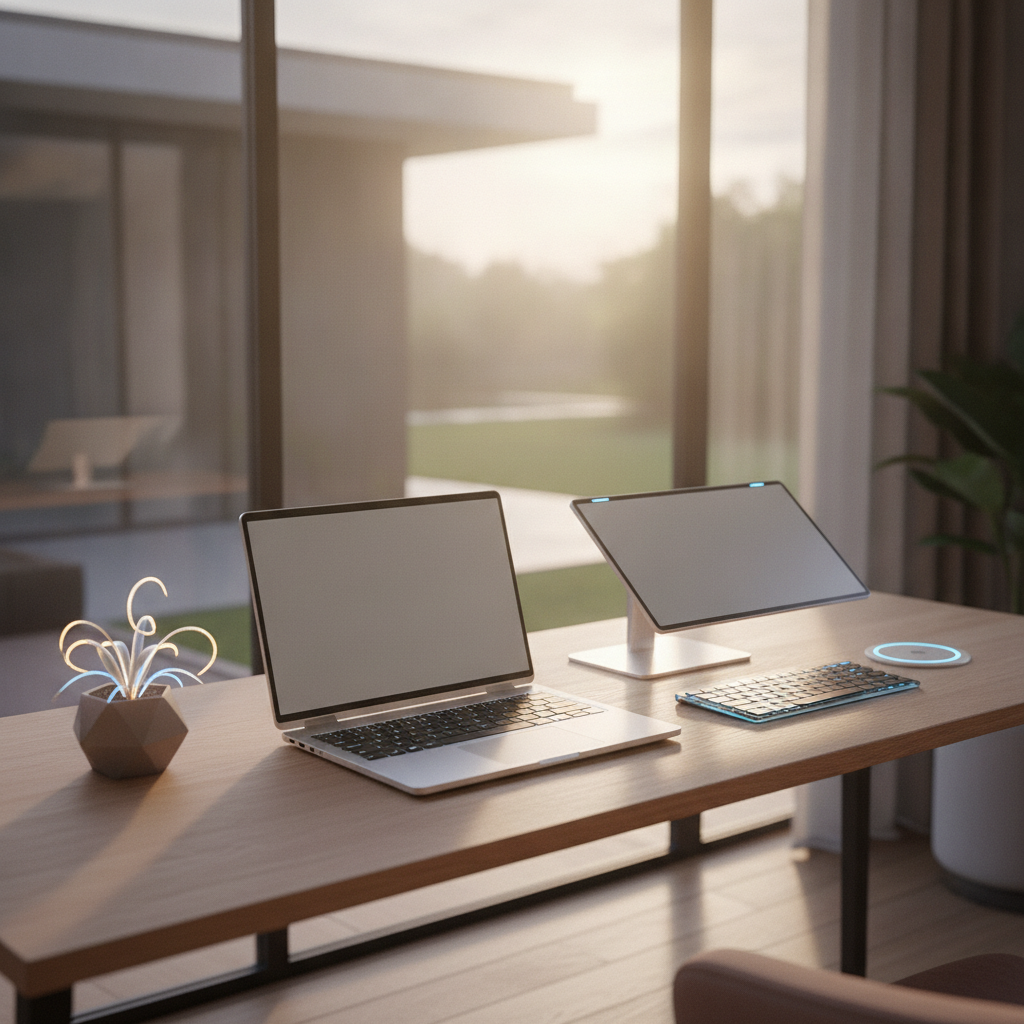
Working from home does not mean you need a big office. A portable work from home desk setup lets you work from any room, any table, or even a couch. This guide shows you how to build one step by step. You will learn what gear to buy, how to pack it, and how to stay comfortable. By the end, you will have a clear plan for your own portable work from home desk setup.
Quick Answer: What Is a Portable Work From Home Desk Setup?
A portable work from home desk setup is a collection of light, foldable gear that lets you work from any spot. It includes a laptop, a small stand, a compact keyboard, and a few cables. Everything fits in one bag. You can set it up in two minutes and take it down just as fast. Unlike a fixed desk, a portable work from home desk setup moves with you. You can work in the kitchen in the morning and the bedroom at night. The goal is simple: work comfortably anywhere without carrying too much.
How to Plan Your Portable Work From Home Desk Setup
Choose Your Work Scenario (Room-to-Room, Apartment, Kitchen Table, or Travel)
First, think about where you will work. There are four common scenarios:
- Room-to-room: You move between rooms in the same house. You need light gear that folds fast.
- Small apartment: Space is tight. Your portable work from home desk setup must store away easily.
- Kitchen table: You share a table with meals. Your setup must be quick to put up and take down.
- Travel: You work from cafes, hotels, or co-working spaces. Every ounce matters.
Write down your main scenario. This choice will guide every product you buy for your portable work from home desk setup.
Measure Your Space and Set a Weight Budget
Next, measure your workspace. Use a tape measure to check the table width and depth. Most portable desks need at least 20 inches of width and 12 inches of depth. Then, set a weight budget. Here is a simple guide:
- Room-to-room use: under 10 lbs total
- Apartment use: under 15 lbs total
- Kitchen table use: under 8 lbs total
- Travel use: under 5 lbs total
Weigh each item before you buy it. A portable work from home desk setup that is too heavy will stay in the bag.
Define Your Setup Time Goal (2-Minute vs. 5-Minute Configurations)
Decide how fast you want to set up. A 2-minute setup means one bag, one cable, and go. A 5-minute setup allows a monitor, a stand, and a keyboard. If you move often, aim for 2 minutes. If you stay in one spot for hours, 5 minutes is fine. Write your goal down. This will help you pick the right gear for your portable work from home desk setup.
Essential Equipment for a Portable Work From Home Desk Setup
Best Portable Desks and Desk Converters for 2026
A good portable desk is the base of your setup. Here are the top picks for 2026:
- MOFT Z 5-in-1 Sit-Stand Desk: Folds flat, weighs 2.2 lbs, and offers five angle positions. Great for laps and tables.
- Levit8 Folding Laptop Desk: Weighs 1.6 lbs. It works as a stand, a desk, and a riser. Very compact.
- Logitech Casa Pop-Up Desk: An all-in-one solution with a built-in keyboard, trackpad, and laptop stand. Best for a true portable work from home desk setup.
Step 1: Pick a desk that fits your weight budget.
Step 2: Test it on your table or lap before buying.
Step 3: Make sure it folds small enough for your bag.
Laptop Stands and Portable Monitor Solutions
A laptop stand raises your screen to eye level. This stops neck pain. The best options for a portable work from home desk setup are:
- Roost V3 Plus: Weighs only 7 oz. Folds to fit in a laptop sleeve. Adjusts from 5 to 14 inches tall.
- Twelve South Curve Flex: Folds to 1.18 inches thick. Offers up to 45 degrees of tilt.
If you want a second screen, a portable monitor boosts your productivity. Top picks include:
- Plugable 15.6-inch Portable Monitor: 1080p IPS screen, USB-C one-cable connection, and a built-in kickstand.
- ARZOPA Z1RC 16-inch: 2560×1600 resolution for sharper text and images.
Step 1: Check that your laptop has a USB-C port that supports video output.
Step 2: Connect the monitor with one USB-C cable.
Step 3: Set the monitor on the left or right of your laptop screen.
Compact Keyboards and Mice for Mobile Work
A small keyboard and mouse make long work sessions easier. The best choices for your portable work from home desk setup are:
- Logitech MX Keys Mini: Backlit keys, Bluetooth, and multi-device switching. Weighs 1.1 lbs.
- Logitech Pebble Keys 2 K380s: Ultra-light at 0.4 lbs. Connects to three devices at once.
- Logitech Pebble Mouse 2: Silent clicks, flat design, fits in a pocket.
Step 1: Pair the keyboard and mouse via Bluetooth before your first use.
Step 2: Keep them in a small pouch so they do not get lost.
Step 3: Place the keyboard at elbow height when you set up.
Docking Stations and USB-C Hubs for One-Cable Connectivity
A USB-C hub lets you connect a monitor, mouse, keyboard, and charger with one cable. This is the heart of a fast portable work from home desk setup. Top picks:
- UGREEN Revodok Pro 211: Small, light, supports HDMI and USB-A ports. Budget-friendly.
- Belkin Connect Thunderbolt 4 Dock Core: Palm-sized, 96W charging, 40Gbps speed. Best for premium laptops.
- Baseus 10-in-1 Docking Station: Dual HDMI, USB-C, SD card slot, and more.
Step 1: Plug the hub into your laptop’s USB-C port.
Step 2: Connect your monitor, mouse dongle, and charger to the hub.
Step 3: One cable to the laptop powers everything. Done.
Power and Connectivity for Your Portable Desk Setup
Calculate Battery Life and Power Bank Requirements
Before you work away from a wall outlet, check your battery needs. Most laptops last 8 to 12 hours. If you need more, get a power bank. Here is how to choose:
- For a 4-hour work session: a 20,000 mAh power bank is enough.
- For a full workday: a 25,000–30,000 mAh power bank with 65W output.
Step 1: Check your laptop’s wattage (usually written on the charger).
Step 2: Buy a power bank that matches or exceeds that wattage.
Step 3: Keep the power bank charged above 50% at all times.
GaN Chargers and Fast Charging Solutions
GaN chargers are small but powerful. They replace big power bricks. For a portable work from home desk setup, these are the best:
- Anker Prime 100W: Three ports, very compact. Charges a laptop and phone at the same time.
- UGREEN Nexode 140W: Four ports. Charges a high-power laptop and two devices at once.
Step 1: Replace all your old chargers with one GaN charger.
Step 2: Use a USB-C cable rated for your laptop’s wattage.
Step 3: Store the charger in your tech pouch.
Wi-Fi, Mobile Hotspots, and Backup Internet Options
Good internet is key for any portable work from home desk setup. If your home Wi-Fi is weak, try these steps:
- Move closer to your router.
- Use the 5GHz band for faster speed.
- Get a mobile hotspot as a backup. The Google Fi Hub or Netgear Nighthawk M6 are solid choices.
- Keep a USB Wi-Fi adapter in your bag for older laptops.
Ergonomics for a Portable Work From Home Desk Setup
Screen Height and Posture Guidelines for Any Surface
Good posture prevents pain. Follow these rules for your portable work from home desk setup:
- The top of your screen should be at eye level.
- Your elbows should rest at 90 degrees.
- Your feet should be flat on the floor.
- Your back should be straight, not slouched.
Step 1: Raise your laptop with a stand until the screen top matches your eye height.
Step 2: Sit back in your chair with your lower back supported.
Step 3: Place the keyboard so your wrists stay straight.
Adjustable Setup Tips for Kitchen Tables and Couches
Not every surface is a perfect desk. Here is how to adapt:
- Kitchen table: Use a laptop stand to raise the screen. Sit on a chair with good back support. Add a cushion if the chair is too low.
- Couch: Use a lap desk like the MOFT Z. Keep your back against the couch arm. Do not work on the couch for more than 90 minutes.
- Bed: Avoid working in bed. If you must, use a firm lap desk and sit upright.
Preventing Neck and Wrist Strain During Long Sessions
Long work sessions can cause strain. Follow these tips:
- Take a 5-minute break every 30 minutes.
- Stretch your neck by tilting your head side to side.
- Roll your wrists in circles every hour.
- Use a soft wrist pad if your table edge is hard.
- Set a timer to remind you to move.
Cable Management Tips for Portable Desk Setups
Quick-Disconnect Cable Solutions for Fast Setup
Cables are the biggest mess in any portable work from home desk setup. Use these tricks:
- Use short cables (1-foot or 2-foot). Long cables tangle fast.
- Choose magnetic cables for your charger. They snap in and out quickly.
- Label each cable with a small tag so you know what it does.
Step 1: Buy velcro cable ties to bundle cables together.
Step 2: Keep one USB-C hub as your main connection point.
Step 3: Practice plugging in one cable to connect everything.
Portable Cable Organizers and Tech Pouches
A good tech pouch keeps everything in one place. The best options:
- Bellroy Tech Kit Compact: Small, structured, fits chargers and cables.
- Peak Design Tech Pouch: Opens flat, many pockets, holds a full portable work from home desk setup accessory kit.
- BAGSMART Electronics Organizer: Budget pick with elastic loops and mesh pockets.
Step 1: Put your charger, cables, hub, and mouse in the pouch.
Step 2: Keep the pouch in your bag at all times.
Step 3: When you arrive, take out the pouch and set up in seconds.
Lighting and Video Call Setup for Portable Workspaces
Optimize Natural Light in Any Room
Natural light is the best light for video calls. Follow these steps:
- Face a window. Never sit with a window behind you.
- If the light is too bright, use a sheer curtain to soften it.
- Move your setup closer to the window in the morning and farther in the afternoon.
Best Portable Lighting Solutions for Video Calls
When natural light is not enough, use a portable light. Top picks for your portable work from home desk setup:
- Elgato Key Light Mini: Rechargeable, clips to your laptop, adjustable brightness and color.
- Logitech Litra Glow: USB-powered, simple dial control, soft warm light. Budget pick.
- Lume Cube Edge Light 2.0: Slim desk light with adjustable color temperature.
Step 1: Clip or place the light above your screen.
Step 2: Set the brightness to match the room.
Step 3: Choose a warm color (4000K–5000K) for a natural look.
Camera, Microphone, and Background Setup for Meetings
For clear video calls:
- Use your laptop camera or a small external webcam like the Logitech C920.
- Use a USB microphone like the Blue Yeti Nano for better sound.
- Keep your background clean. A plain wall or a small bookshelf works well.
- Use a blur background feature in your call app if the room is messy.
Privacy and Security for Portable Work From Home Setups
Privacy Screens and Shoulder Surfing Prevention
If you work in shared spaces, protect your screen. A privacy screen filter limits the viewing angle. Only you can see the display from straight on. Step 1: Buy a filter that matches your laptop size. Step 2: Attach it with the included adhesive strips. Step 3: Replace it every 12 months.
Secure Wi-Fi and VPN Best Practices for Remote Work
When you use public Wi-Fi, your data is at risk. Follow these rules:
- Always use a VPN like NordVPN or ExpressVPN.
- Never enter passwords on unsecured networks.
- Turn off file sharing on public networks.
- Use two-factor authentication on all work accounts.
Protecting Equipment in Shared or Public Spaces
Keep your gear safe with these steps:
- Never leave your bag open or unattended.
- Use a cable lock to secure your laptop to a table.
- Keep small items like the mouse and hub inside the tech pouch.
- Take a photo of your gear serial numbers for insurance.
How to Pack and Transport Your Portable Desk Setup
One-Bag vs. Two-Bag Configurations Compared
| Feature | One-Bag Setup | Two-Bag Setup |
|---|---|---|
| Total weight | Under 8 lbs | 8–15 lbs |
| Setup time | 2 minutes | 5 minutes |
| Best for | Travel, cafes | Room-to-room, hybrid work |
| Includes | Laptop, charger, mouse | Laptop, monitor, stand, keyboard, hub, light |
Complete Packing Checklist with Weight Distribution Tips
Pack your portable work from home desk setup in this order:
- Heaviest items (charger, hub) at the bottom of the bag, close to your back.
- Laptop in the padded sleeve in the main compartment.
- Monitor or stand in the flat section against the laptop.
- Keyboard and mouse in the tech pouch on top.
- Cables and small items in the front pocket.
Daily Setup and Breakdown Routines for Efficiency
Build a routine to save time:
Setup (2 minutes):
- Open bag, take out tech pouch.
- Unfold laptop stand and place laptop on it.
- Plug in one USB-C cable from the hub.
- Open laptop and start working.
Breakdown (1 minute):
- Unplug one cable.
- Fold stand and place in bag.
- Put tech pouch back in bag.
- Zip and go.
5 Portable Work From Home Desk Setup Configurations Ranked
Configuration 1: Laptop-Only Setup (Maximum Mobility, Under 5 lbs)
This is the lightest portable work from home desk setup. You only need your laptop and a charger. Best for short work sessions at cafes or on the couch. Total weight: about 3–4 lbs. Setup time: 30 seconds.
Configuration 2: Ergonomic Portable Setup (Daily Room-to-Room Use)
Add a Roost V3 Plus stand and a Logitech Pebble Mouse. This raises your screen and gives you a better typing position. Total weight: about 5 lbs. Setup time: 2 minutes. Best for daily use at home.
Configuration 3: Dual-Screen Mobile Setup (Productivity-Focused)
Add a Plugable 15.6-inch portable monitor and a USB-C hub. Two screens let you see more at once. Total weight: about 8 lbs. Setup time: 4 minutes. Best for long work sessions with spreadsheets or code.
Configuration 4: One-Bag Professional Setup (Hybrid Commuters)
Include a laptop, Twelve South Curve Flex stand, Logitech MX Keys Mini, UGREEN Revodok hub, Anker Prime 100W charger, and a portable monitor. Everything fits in one backpack. Total weight: about 10 lbs. Setup time: 5 minutes. Best for people who work from home and the office.
Configuration 5: Power-Independent Setup (Travel and Off-Grid Work)
Add a 25,000 mAh power bank and a UGREEN Nexode 140W GaN charger. You can work without a wall outlet for a full day. Total weight: about 12 lbs. Setup time: 5 minutes. Best for travel, camping, or areas with unreliable power.
FAQ: Common Questions About Portable Work From Home Desk Setups
What Is the Minimum Equipment Needed for a Portable Desk Setup?
The minimum is a laptop, a charger, and a mouse. That is it. You can work from anywhere with just these three items. Add a stand when you can afford one. A stand is the single best upgrade for comfort in a portable work from home desk setup.
How Much Should a Portable Work Setup Weigh?
For daily room-to-room use, keep it under 10 lbs. For travel, aim for under 5 lbs. If your bag feels heavy, remove one item and see if you can live without it. Most people carry more than they need.
Can I Use a Portable Monitor With Any Laptop?
Most portable monitors use USB-C. Your laptop must have a USB-C port that supports video output (look for “DisplayPort Alt Mode” or a small display icon next to the port). If your laptop only has USB-A ports, you will need a USB-to-HDMI adapter. Check your laptop specs before buying a portable monitor for your portable work from home desk setup.
What Is the Best Bag for Carrying a Portable Office?
The best bag has a padded laptop sleeve, a flat section for a monitor, and organized pockets for cables. Top picks include the Peak Design Everyday Backpack, the Bellroy Classic Backpack, and the Tomtoc 360 Protective Laptop Bag. Choose one that fits your laptop size and your configuration weight.
How Do I Set Up a Portable Desk in Under 2 Minutes?
Follow these steps:
- Keep all cables plugged into your USB-C hub at all times.
- Store the hub with cables wrapped around it.
- When you arrive, unfold the stand, place the laptop, and plug in one cable.
- Open the laptop. You are ready.
Practice this routine three times. You will be under 2 minutes every time.
Final Tips for Building Your Portable Work From Home Desk Setup in 2026
Building a portable work from home desk setup is not about buying everything. It is about choosing the right gear for your needs. Start small. Add one item at a time. Test each piece before you buy. Remember these key points:
- Keep it light. If it is too heavy, you will not use it.
- Use one USB-C hub to reduce cable mess.
- Raise your screen to eye level to protect your neck.
- Pack the same way every time so setup is fast.
- Invest in a good GaN charger to replace all your old power bricks.
- Protect your data with a VPN on public Wi-Fi.
Your portable work from home desk setup should make work easier, not harder. Start with the laptop-only setup and grow from there. In a few weeks, you will have a system that works perfectly for you. Happy working!