
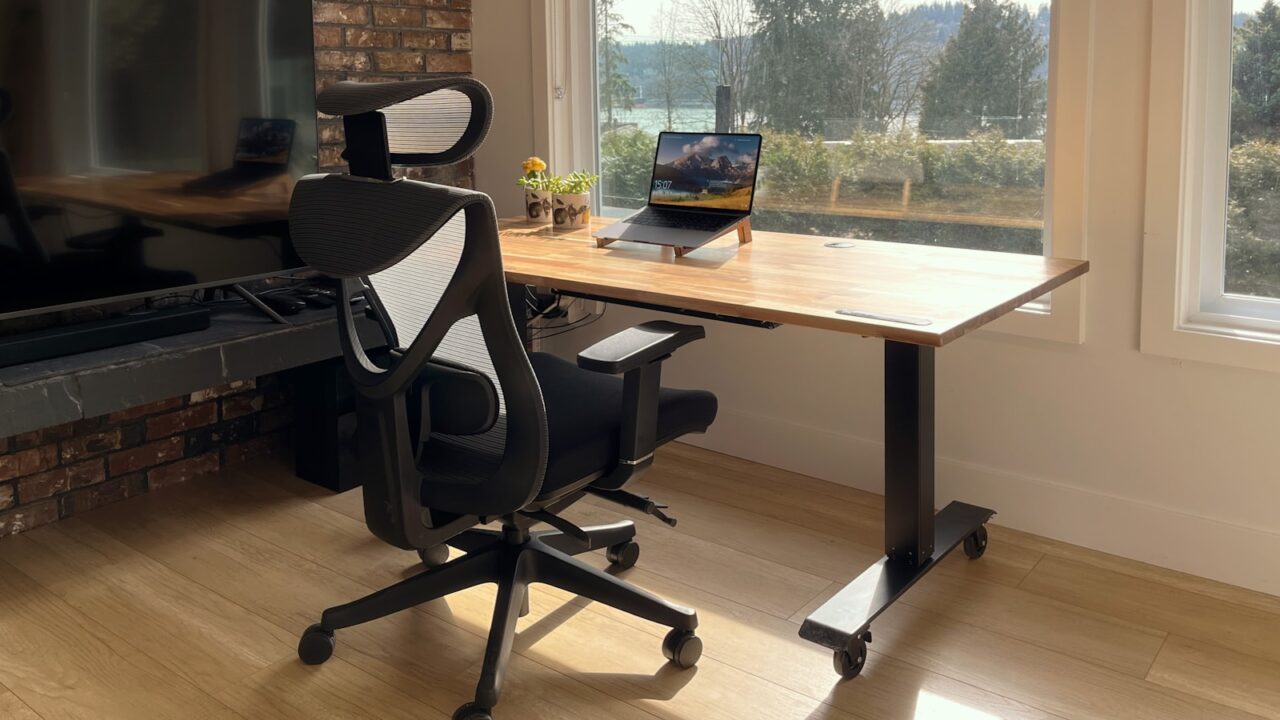
Keyboard and mouse placement affects more than your hands. If the keyboard is too far away, your shoulders reach forward. If the mouse sits outside your natural arm path, your wrist and neck often compensate. A comfortable setup keeps your elbows close, wrists neutral, and screen centered around the work you do most.
This article is for laptop users, desktop users, and home office workers who want a repeatable way to place input devices without turning the desk into a complicated ergonomic project.
Key Takeaways
- Keep the keyboard close enough that your elbows rest near your sides.
- Place the mouse at the same height and depth as the keyboard, not far to the side.
- Use a compact keyboard if a number pad forces the mouse too far away.
- Adjust chair height and desk height before blaming the keyboard or mouse.
Start With a Neutral Arm Position
Sit close enough to the desk that your elbows can bend around 90 degrees without your shoulders rising. Your forearms should float comfortably or rest lightly, not press hard into the front edge of the desk. The keyboard should sit directly in front of your torso when typing is the main task.
If you use a laptop, do not type on the laptop keyboard after raising the screen. That usually lifts your hands and bends your wrists. A separate keyboard and mouse let the laptop screen sit higher while your hands stay lower and relaxed.
Keyboard Depth: How Far From the Desk Edge?
For most people, the front edge of the keyboard works best about 3 to 6 inches from the desk edge. This gives your hands enough space without forcing a long reach. If the keyboard is pushed too deep into the desk, your shoulders round forward and your neck often follows.
There is no perfect number for every body. The test is simple: place your fingers on the home row, relax your shoulders, and notice whether your elbows stay near your sides. If your elbows drift forward, bring the keyboard closer.
Mouse Placement: Keep It Inside Your Comfort Zone
The mouse should live close to the keyboard, at the same depth, and within easy reach of your dominant hand. A common mistake is using a full-size keyboard with a number pad, then placing the mouse several inches farther right. That extra reach can create shoulder tension over a long workday.
If the mouse feels too far away, try a tenkeyless or compact keyboard. Removing the number pad can bring the mouse 3 to 4 inches closer to your centerline. That small change often matters more than switching to a premium mouse.
Wrist Angle and Keyboard Tilt
Your wrists should stay close to straight while typing and mousing. Many keyboards include rear feet that tilt the keyboard upward, but that can increase wrist extension. If your wrists bend back, try keeping the keyboard flatter or using a low-profile keyboard.
A wrist rest can help during pauses, but it should not carry your weight while typing. Pressing the wrist into a pad while moving fingers can create pressure. Use the rest as a landing zone, not as a brace.
Desk Height and Chair Height
If the desk is too high, your shoulders rise and your wrists bend. If the desk is too low, you may collapse forward. Start by adjusting the chair so your feet are supported and your elbows meet the keyboard comfortably. If your feet no longer touch the floor, add a footrest.
For fixed-height desks, a keyboard tray can help when the surface is too high. For sit-stand desks, create separate sitting and standing presets so the keyboard height remains comfortable in both positions.
Notes for Left-Handed and Mixed-Hand Users
Left-handed users should not accept a right-handed layout by default. Place the mouse on the left if that keeps your shoulder relaxed. If you use a number pad heavily, consider a separate number pad that can sit on either side of the keyboard.
Some people alternate mouse hands to reduce fatigue. This works best with a symmetrical mouse and a pointer speed that does not require large arm movements.
Quick Placement Checklist
- Screen centered with your main task, not necessarily centered with the desk.
- Keyboard centered with your torso when typing.
- Mouse close to the keyboard and at the same height.
- Elbows near your sides, not reaching forward.
- Wrists straight, with no hard pressure on the desk edge.
- Feet supported after chair height is adjusted.
FAQ
Should the keyboard be centered with the monitor?
Center the keyboard with your body first. The monitor should be centered with the task you look at most. For dual monitors, that may be one primary screen instead of the physical center between both screens.
Is a vertical mouse better for wrist pain?
It can help some users, but placement still matters. A vertical mouse placed too far away can still strain the shoulder.
Do I need a keyboard tray?
You need one only if the desk surface is too high or too deep for comfortable typing. A tray is useful when chair and desk height cannot be adjusted enough.
Final Check
Good keyboard and mouse placement should feel boring: close, level, and easy to reach. If your shoulders stay low, your wrists stay neutral, and you do not need to chase the mouse across the desk, the layout is doing its job.