

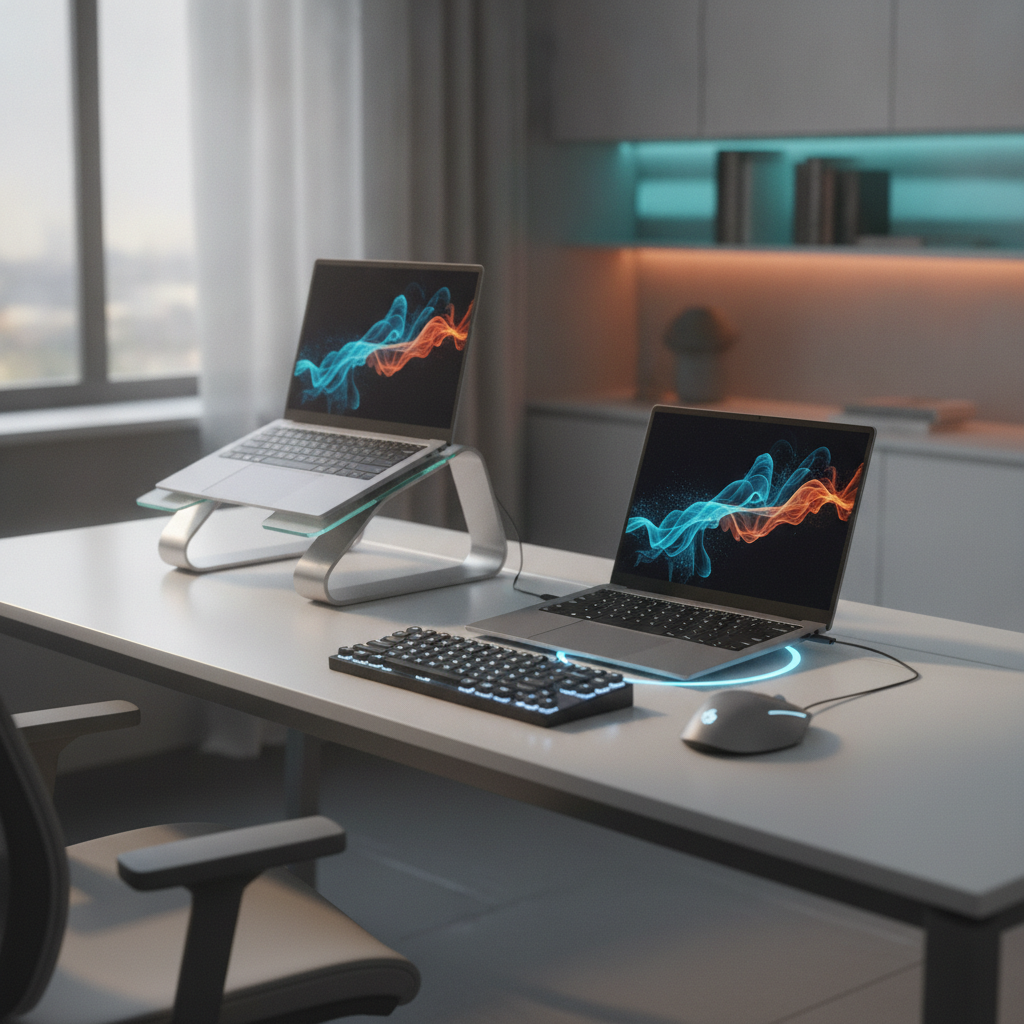
Do you have two laptops at home? Maybe one laptop is for school work and the other is for playing games. Or maybe you share your workspace with a family member who also needs a computer. Building a dual laptop desk setup is a very smart choice. It saves a lot of space on your desk. It also keeps all your work and play items organized in one place. This guide will show you exactly how to build a dual laptop desk setup step by step. We will use simple words and clear instructions. You do not need to be a computer expert to follow this. Let us start your dual laptop desk setup journey today and make your workspace awesome.
What You’ll Need for a Dual Laptop Desk Setup
Before we begin building, you need to gather the right tools and parts. A good dual laptop desk setup always starts with good gear. If you miss one important item, the whole project can slow down. Let us look at what you need to buy or find in your house.
Essential Equipment Checklist
Here is a list of things you need for your project. You can check off each item as you find it. This list covers the basic needs for a dual laptop desk setup.
- Two working laptops with their power chargers
- At least one external monitor for a bigger screen
- A USB-C docking station to connect everything easily
- A KVM switch or software to share your keyboard and mouse
- Laptop stands to raise the screens to your eye level
- Extra cables like HDMI and USB-C for video and data
- A power strip with surge protection to keep things safe
Minimum Desk Size Requirements
Space matters a lot when you have two computers. For a dual laptop desk setup, you need a large and sturdy desk. A desk that is at least 48 inches wide and 24 inches deep is the best choice. This size gives you plenty of room for two laptops, a monitor, and your hands to move freely. If your desk is too small, your dual laptop desk setup will feel crowded and messy.
| Desk Width | Desk Depth | Suitability for Setup |
|---|---|---|
| 40 inches | 20 inches | Too small, very tight fit |
| 48 inches | 24 inches | Minimum size, works well |
| 60 inches | 30 inches | Perfect size, lots of space |
Laptop Compatibility Check
Not all laptops are built the same way. You must check your laptops before starting. Do they have USB-C ports? This is very key for a modern dual laptop desk setup. USB-C ports can send video, data, and power all at the same time through one single cable. If your laptops only have old USB-A ports, you will need more adapters.
Step 1: Plan Your Dual Laptop Desk Layout
Planning makes your dual laptop desk setup much easier and faster. If you just start plugging things in without a plan, you will get frustrated. Take a few minutes to think about how you want your desk to look and work.
Choose the Right Desk Size and Shape
Pick a desk that fits your room perfectly. A simple rectangular desk is usually best for a dual laptop desk setup. It gives you a long straight edge to line up your monitors. If you have a corner in your room, an L-shaped desk is also a great choice. It gives you two separate zones for your two laptops.
Map Out Your Workspace Zones
Divide your desk into different zones to stay organized. Put your main laptop right in the center where you sit. Put the second laptop on the left or right side. You can also make a small zone for writing homework with a pen and paper. This zone planning helps your dual laptop desk setup feel clean and logical.
Decide on Laptop Placement Strategy
You have a few choices for placing your computers. You can place both laptops side by side on the desk. Or, you can put one laptop on a tall stand next to a big external monitor. The best dual laptop desk setup keeps all screens at the exact same eye level. This prevents neck pain during long study sessions.
Step 2: Check Laptop Compatibility for Dual Setup
You need to make sure your computers can talk to each other and to your monitors. Your dual laptop desk setup needs compatible machines to work smoothly. Let us check the ports and power needs of your laptops.
Identify Your Laptop Ports (USB-C, Thunderbolt, HDMI)
Look closely at the left and right sides of your laptops. Find all the ports. USB-C and Thunderbolt ports are the absolute best for a dual laptop desk setup. They can handle data, video, and power all at once. HDMI ports are also good, but they only send video and need a separate cable for power.
Verify DisplayPort Alt Mode Support
This name sounds very hard, but it is actually simple. It just means your USB-C port can send video to a monitor. You need to check your laptop manual or the sticker on the laptop to see if it has this feature. This feature is strictly required for a smooth dual laptop desk setup using only one cable.
Determine Charging and Power Requirements
Laptops need a lot of power to stay on. Check the wattage number on your laptop charger. A USB-C dock must provide enough power to charge your laptop while you use it. If the dock is too weak, your battery will drain. This keeps your dual laptop desk setup running all day without stopping.
Step 3: Connect Laptops to External Monitors
Now we connect the screens. This is the most fun part of your dual laptop desk setup. Seeing your work on a big screen makes everything better and easier to read.
Using USB-C Docks for Each Laptop
A USB-C dock is like a magic box for your desk. You plug just one cable into your laptop. Then, the dock connects to your monitor, your mouse, and your keyboard. This makes a dual laptop desk setup very clean because you only have one cable going to the computer.
HDMI and DisplayPort Connection Options
If your laptop lacks a good USB-C port, you can use HDMI. Plug an HDMI cable directly from the laptop to the monitor. It works very well for a basic dual laptop desk setup. Just remember that you will still need to plug the laptop into the wall for power.
Multi-Input Monitor Setup for Two Laptops
Many modern monitors have two or three input ports on the back. Some have two HDMI ports. You can plug laptop one into HDMI port one. Then plug laptop two into HDMI port two. You just use the monitor buttons to switch the input. This is a very cheap dual laptop desk setup trick that works great.
Step 4: Share Peripherals Between Two Laptops
You do not want two keyboards and two mice taking up all your desk space. A good dual laptop desk setup shares one keyboard and one mouse between both computers. This saves money and keeps your desk tidy.
Hardware KVM Switch Setup
A KVM switch is a small physical button box. You plug your keyboard and mouse into the KVM box. Then you plug both laptops into the KVM box using USB cables. When you press a button on the box, the keyboard and mouse switch to the other laptop. This is the best hardware choice for a reliable dual laptop desk setup.
Software Solutions (Barrier, Mouse Without Borders, Synergy)
If you do not want to buy extra hardware, you can use software. Programs like Mouse Without Borders let your mouse move from one laptop screen to the other over your home Wi-Fi network. You just move the mouse to the edge of the screen, and it pops up on the other laptop. This is a free dual laptop desk setup solution that feels like magic.
Multi-Device Keyboard and Mouse Options
You can also buy a special keyboard that connects to three devices at once using Bluetooth. You just press a small button on the top of the keyboard to switch between laptops. This is a very easy dual laptop desk setup method that requires no extra cables or software.
Step 5: Optimize Ergonomics in Your Dual Laptop Setup
Ergonomics means keeping your body healthy and comfortable while you work. A safe dual laptop desk setup prevents neck, back, and wrist pain. You will be sitting for a long time, so comfort is very important.
Position Laptop Stands for Eye-Level Screens
Never look down at your laptop screen for hours. It hurts your neck. Use a laptop stand to raise the screen. The top of the screen should be exactly at your eye level. This is a crucial rule for a healthy dual laptop desk setup.
Monitor Arm Placement for Dual Displays
If you use external monitors, buy a monitor arm. It clamps tightly to the back edge of your desk. You can move the screen up, down, left, or right. This frees up valuable desk space under the screen for your dual laptop desk setup.
Keyboard and Mouse Positioning
Keep your keyboard close to the edge of the desk. Your elbows should be bent at a 90-degree angle when you type. Your wrists should be straight. A good dual laptop desk setup keeps your arms totally relaxed and pain-free.
Step 6: Cable Management for Dual Laptop Desk Setup
Messy cables look bad and can be dangerous. A neat dual laptop desk setup hides all the wires so your room looks clean and professional.
Route Power Cables and Charging Bricks
Plug all your power bricks and chargers into one good power strip. Hide the power strip completely under the desk. This keeps your dual laptop desk setup safe from accidental water spills and keeps the top of the desk clear.
Organize Data and Display Cables
Use velcro ties to group cables that go to the same place. Tie the HDMI cable together with the power cable. This stops the cables from tangling. It makes your dual laptop desk setup look very neat and organized.
Under-Desk Cable Tray Installation
Buy an under-desk cable tray made of metal or plastic. You can screw it or stick it under your desk. Put all the extra long cables and power bricks inside the tray. Your dual laptop desk setup will look completely wire-free from the top.
Step 7: Configure Display Settings and Test Setup
Everything is plugged in and tied up. Now we turn it on and test the dual laptop desk setup to make sure it works perfectly.
Extended vs. Mirrored Display Configuration
Go to your computer display settings. Choose Extended to make the monitor a second, separate screen. Choose Mirror to show the exact same thing on both screens. Extended is usually the best choice for a dual laptop desk setup because it gives you more room for windows.
Test Peripheral Switching Between Laptops
If you use a KVM switch or software, test it now. Press the button or move the mouse. Make sure the keyboard and mouse follow you to the other computer. Test your dual laptop desk setup controls to ensure there is no lag.
Verify Charging and Bandwidth Performance
Check your laptop battery icon. Is it charging properly? If not, your dock might not have enough power. Also, move your mouse around to see if it stutters. Adjust your dual laptop desk setup connections if you find any problems.
Troubleshooting Common Dual Laptop Setup Issues
Sometimes things go wrong when you build a new workspace. Here is how to fix your dual laptop desk setup if you run into trouble.
Fix Flickering or No Display Problems
If your screen flickers or goes black, check the cable first. Unplug it and plug it back in tightly. Try using a different HDMI or USB-C cable. This simple fix solves most dual laptop desk setup display issues quickly.
Resolve Laptop Not Charging Through Dock
If the laptop is not charging, the dock might be too weak. Make sure the dock is plugged directly into the wall outlet. Use the original laptop charger if the dock fails to provide enough power. This saves your dual laptop desk setup from shutting down.
Address KVM Switch Compatibility Issues
If the KVM switch acts weird or drops connection, update your laptop drivers. Sometimes USB-C ports need a software update from the maker to work right. This keeps your dual laptop desk setup running smoothly every day.
FAQ: How to Build a Dual Laptop Desk Setup
Here are answers to the most common questions people ask about building this workspace.
Can I Use One Monitor for Two Laptops?
Yes, you absolutely can. You can use a monitor with multiple input ports on the back. Or, you can use a KVM switch to share the screen. Both ways work great for a dual laptop desk setup and save you from buying a second monitor.
Do I Need a KVM Switch for Dual Laptops?
No, you do not strictly need one. You can use free software like Mouse Without Borders. Or you can buy a multi-device Bluetooth keyboard. A KVM switch is just one hardware option for a dual laptop desk setup.
What’s the Best Desk Size for Two Laptops?
A desk that is 48 to 60 inches wide is the best choice. This gives you plenty of room for both computers, a monitor, and your hands. It is the perfect size for a comfortable dual laptop desk setup.
Final Tips for Your Dual Laptop Desk Setup
Building a dual laptop desk setup takes a little bit of time and patience. But the final result is totally worth the effort. Keep your cables tidy every week. Check your posture and sit up straight. Update your software when your computer asks. Now you know exactly how to build a dual laptop desk setup from start to finish. Start planning your space today and enjoy your amazing new dual laptop desk setup!