

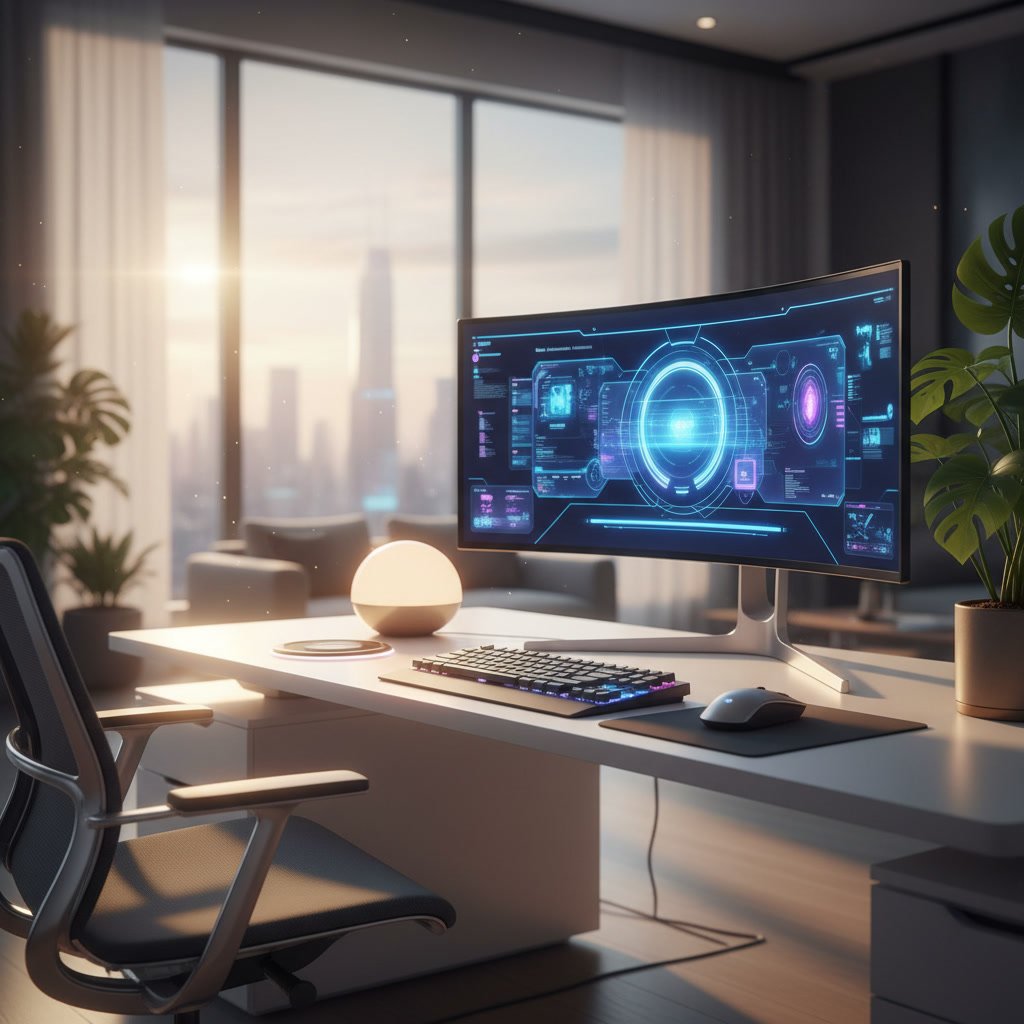
Working from home is now normal for millions of people. But a bad desk setup can cause pain, tired eyes, and low productivity. This work from home desk setup checklist will help you build a workspace that feels great and works well. Whether you have a big room or a tiny corner, this guide covers everything you need. Follow each step, and you will have a desk setup that supports your health and your work goals.
This guide is written in simple language so anyone can follow it. You do not need to be a tech expert. If you can read this, you can build a great work from home desk setup.
Quick Reference: 10-Point Work From Home Desk Setup Checklist
Before we go deep, here is a quick work from home desk setup checklist you can use right away. Print it out or save it on your phone. Check off each item as you go.
Essential Equipment Checklist
- A sturdy desk or table at the right height
- A comfortable chair with back support
- A reliable computer or laptop
- An external monitor (if possible)
- A keyboard and mouse that feel good to use
Ergonomic Setup Checklist
- Chair height lets your feet rest flat on the floor
- Monitor top is at or slightly below eye level
- Keyboard is at elbow height with wrists straight
- Arms rest at a 90-degree angle
Tech & Connectivity Checklist
- Stable internet connection (at least 25 Mbps)
- Enough power outlets or a surge protector
- Webcam and microphone for video calls
- Good lighting for your face on camera
- Backup power plan for important work days
How to Choose Your Work From Home Desk Setup Type
Not every work from home desk setup checklist looks the same. Your setup depends on how you work, your space, and your budget. Let us look at the four most common types.
Full-Time Home Office Setup Checklist
If you work from home every day, you need a dedicated space. This means a room or area used only for work. Key items include a large desk, an ergonomic chair, dual monitors, and proper lighting. Invest in quality furniture because you will use it eight or more hours daily. A full-time setup should feel like a real office, not a temporary fix.
Hybrid Work Desk Setup Checklist
Hybrid workers split time between home and an office. Your home desk setup can be simpler. A laptop stand, a good chair, and a set of headphones may be enough. Choose a spot you can pack up quickly. A rolling cart for your supplies works well. The goal is flexibility without losing comfort.
Small Space / Apartment Desk Setup Checklist
Living in a small apartment does not mean you cannot have a great work from home desk setup. Use a wall-mounted fold-down desk or a compact corner desk. Choose a slim chair that tucks under the desk. Use vertical shelves for storage. A laptop on a stand saves space over a full desktop. Keep cables hidden to make the area feel bigger.
Budget-Friendly Desk Setup Checklist
You do not need to spend a lot of money. A budget-friendly work from home desk setup checklist focuses on the items that matter most. Spend on your chair first because your back needs support. Then get a stable desk. A used monitor from a reliable seller can save you hundreds. Free cable management tricks like twist ties and binder clips work just as well as expensive products.
Step 1: Assess Your Space for a Work From Home Desk Setup
Before you buy anything, look at the space you have. This step is part of every good work from home desk setup checklist. Rushing this step leads to mistakes that cost time and money later.
Measure Your Available Space
Use a tape measure to find the width, depth, and height of your area. Write down the numbers. You need at least 48 inches of width for a basic desk and chair combo. The depth should be at least 24 inches for the desk plus 30 inches behind it for your chair to roll. Check ceiling height if you plan to add shelves above.
Identify Power & Internet Access Points
Find where your power outlets are. Count how many you can use. You will need at least three outlets: one for your computer, one for your monitor, and one for a lamp or charger. Check where your router is. If your chosen spot is far from the router, you may need a Wi-Fi extender or an Ethernet cable for a stable connection.
Consider Lighting & Noise Factors
Notice where windows are. Natural light is great, but direct sun on your screen causes glare. Side lighting is best. Also think about noise. If your space is near a busy street or a loud room in your home, plan for noise-canceling headphones or a white noise machine. These small choices make a big difference in your daily comfort.
Step 2: Build the Ergonomic Foundation of Your Desk Setup
Ergonomics means setting up your workspace so your body stays healthy. This is the most important part of any work from home desk setup checklist. Bad ergonomics leads to neck pain, back pain, and wrist problems.
Choose & Adjust Your Ergonomic Chair
Your chair is the single most important item. Look for these features: adjustable seat height, lumbar support for your lower back, adjustable armrests, and a seat that is deep enough to support your thighs. Sit down and adjust the height so your feet are flat on the floor. Your knees should be at a 90-degree angle. Lean back slightly and feel the lumbar support press into your lower back.
Select the Right Desk Height & Type
A standard desk is 28 to 30 inches tall. This works for most people who are average height. If you are taller or shorter, look for an adjustable-height desk. Standing desks are popular in 2026 because they let you switch between sitting and standing. The rule is simple: your elbows should be at 90 degrees when your hands rest on the keyboard.
Position Your Monitor at Eye Level
The top of your screen should be at or just below eye level. The screen should be about an arm’s length away from your face. If your monitor is too low, use a monitor stand or a stack of sturdy books. If you use a laptop, get a laptop stand and use an external keyboard. Looking down at a laptop screen for hours will hurt your neck.
Set Up Keyboard & Mouse Ergonomics
Place your keyboard so your wrists stay straight, not bent up or down. Your mouse should be right next to the keyboard so you do not reach far. Consider an ergonomic keyboard or a vertical mouse if you feel wrist pain. Take breaks every 30 minutes to stretch your hands and fingers.
Step 3: Complete Your Work From Home Desk Setup Equipment Checklist
Now it is time to add the equipment that makes your workspace complete. This work from home desk setup checklist covers everything beyond the basics.
Computer & Display Setup
Choose a computer that fits your work. For basic tasks like email and documents, a mid-range laptop is fine. For design, coding, or video work, you may need a more powerful machine. Add an external monitor that is at least 24 inches. Two monitors or one ultrawide monitor can boost your productivity by letting you see more at once.
Audio & Video Equipment for Calls
Video calls are a big part of remote work. Get a webcam that shoots at least 1080p resolution. A USB microphone sounds much better than your laptop mic. Headsets with a built-in mic are great for noisy homes. Test your audio and video before important calls to avoid surprises.
Lighting & Ambiance
Good lighting reduces eye strain and makes you look better on camera. Use a desk lamp with adjustable brightness. Place it to the side of your monitor to avoid glare. A small ring light behind your webcam helps on dark days. Add a small plant or a photo to make your space feel welcoming.
Storage & Organization
Keep your desk clear of clutter. Use a desk organizer for pens and small items. Add a file holder for papers you need often. A small bookshelf or wall shelf above your desk holds books and supplies without taking up desk space. The rule is simple: everything should have a home.
Step 4: Add Smart Features to Your 2026 Desk Setup
The year 2026 brings exciting smart features to the work from home desk setup checklist. These tools use technology to make your work life easier and healthier.
AI-Powered Webcams & Microphones
New webcams in 2026 use AI to keep your face centered in the frame as you move. They also adjust lighting and blur your background automatically. Smart microphones can filter out background noise like dogs barking or traffic. These features make your calls look and sound professional without any effort.
Smart Desk Accessories & Automation
Smart plugs let you turn lamps and monitors on or off with your phone or a schedule. A smart desk can remember your favorite sitting and standing heights. Smart speakers can set timers for breaks, play focus music, or take voice notes. These small automations save time and reduce distractions.
Posture Monitoring & Wellness Tech
Wearable devices and smart chair sensors can track your posture during the day. They send gentle reminders when you slouch or have been sitting too long. Some apps track your screen time and suggest breaks. Using these tools helps you build healthy habits without thinking about it.
Step 5: Master Cable Management for a Clean Desk Setup
A messy tangle of cables looks bad and can be a safety risk. Good cable management is a key part of any work from home desk setup checklist.
Cable Routing Techniques
Run cables along the back edge of your desk using adhesive clips. Group cables that go to the same device together. Use the holes in your desk (if it has them) to pass cables down to the floor. Keep power cables separate from data cables to reduce interference.
Best Cable Management Products
- Cable sleeves to bundle multiple cords together
- Under-desk cable trays to hold power strips and excess cable
- Velcro cable ties for easy adjustments
- Adhesive cable clips for routing along desk edges
- Cable boxes to hide power strips from view
Wireless Setup Alternatives
Reduce cables by going wireless where possible. A wireless keyboard and mouse cut two cables. Wireless headphones remove the audio cable. A wireless charging pad on your desk keeps your phone charged without plugging it in. Each cable you remove makes your setup cleaner and simpler.
Step 6: Optimize Your Work From Home Desk Setup for Productivity
A great desk setup does more than feel comfortable. It helps you focus and get more done. Use this part of the work from home desk setup checklist to boost your output.
Dual Monitor vs. Ultrawide Setup
Two monitors let you keep different apps on each screen. This is great for comparing documents or keeping chat open while you work. An ultrawide monitor gives you one big screen with no gap in the middle. It is great for timelines, spreadsheets, and creative work. Try both if you can before deciding.
Digital Workspace Organization
Your digital space matters as much as your physical desk. Create folders for each project. Use a task management app to track your to-do list. Close browser tabs you are not using. Set your phone to Do Not Disturb during focus hours. A clean digital workspace reduces stress and helps you think clearly.
Break & Movement Reminders
Set a timer to stand up and move every 30 to 60 minutes. Walk to get water, stretch your arms, or look out a window. The 20-20-20 rule helps your eyes: every 20 minutes, look at something 20 feet away for 20 seconds. These small breaks keep your energy up and your body healthy throughout the day.
Troubleshooting Common Work From Home Desk Setup Problems
Even with a good work from home desk setup checklist, problems can come up. Here are the most common ones and how to fix them.
Fix Neck & Back Pain Issues
Neck pain usually means your monitor is too low or too far away. Raise your screen until the top is at eye level. Back pain often comes from a chair without lumbar support. Add a small pillow behind your lower back if your chair lacks support. If pain continues after two weeks of fixes, see a doctor.
Solve Eye Strain & Glare Problems
Eye strain comes from screens that are too bright, too dim, or placed near a window. Adjust your screen brightness to match the room light. Move your desk so windows are to your side, not in front of or behind your screen. Use the blue light filter on your computer in the evening. Get your eyes checked if strain continues.
Address Space Constraints
If your desk feels too small, go vertical. Add shelves above your desk for books and supplies. Use a monitor arm to lift your screen off the desk surface. Switch to a laptop and tuck it away when not in use. A rolling cart beside your desk adds storage that you can move out of the way when needed.
Maintain Your Work From Home Desk Setup Long-Term
A good work from home desk setup is not a one-time project. It needs regular check-ins to stay effective. Add these maintenance steps to your work from home desk setup checklist.
Weekly Setup Check Routine
Every week, take five minutes to check your setup. Make sure your chair adjustments still feel right. Wipe down your screen and keyboard. Check that all cables are still tidy. Clear away any new clutter on your desk. This small habit keeps your space working well.
Monthly Equipment Review
Once a month, look at each piece of equipment. Check if anything feels worn out or broken. Test your internet speed to make sure it meets your needs. Update your software and drivers. Ask yourself if anything is missing that would make your work easier.
When to Upgrade Your Setup
Upgrade when your equipment slows down your work, causes pain, or no longer fits your needs. A chair that sinks on its own needs replacing. A monitor with dead pixels should be swapped. If your job changes and you need more screen space or a faster computer, plan the upgrade. Budget for one big upgrade per year to keep your setup current.
FAQ: Work From Home Desk Setup Questions Answered
How much should I spend on a work from home desk setup?
A basic setup costs $300 to $500. A good mid-range setup costs $800 to $1,500. A premium setup can cost $2,000 or more. Spend the most on your chair and monitor because those affect your health the most.
Do I need a standing desk?
No, but it helps. Standing desks let you switch positions during the day, which is good for your back and energy levels. If you cannot get one, just stand up and stretch every hour.
What is the best desk size for a small room?
A desk that is 40 to 48 inches wide and 24 inches deep works well in small rooms. This gives you enough space for a monitor, keyboard, and a few items without taking over the room.
How do I stop my back from hurting while working at home?
Use a chair with lumbar support. Keep your feet flat on the floor. Sit with your back against the chair. Stand up and move every 30 to 60 minutes. These steps fix most back pain caused by desk work.
Is one monitor enough for working from home?
Yes, one monitor is enough for most people. Use window management tools to split your screen into sections. Add a second monitor only if you find yourself constantly switching between apps.
Summary: Your Next Steps
Building a great work from home desk setup does not have to be hard. Start with this work from home desk setup checklist. Measure your space. Pick the right chair and desk. Position your monitor at eye level. Manage your cables. Add smart features over time. Check your setup weekly and upgrade when needed.
Your desk setup is an investment in your health and your career. Take it one step at a time. Use the checklist above, and you will have a workspace that you enjoy using every day. Start today, and feel the difference by the end of the week.